 Aser One
LearnStart here: one result at a time
How to set up employee attendance with face verification
See who came to work, when and from where, even when you are away.
On the phone, 10 steps
Guide 1 of 5 in Start here: one result at a time
What you need
- A phone for you.
- Each employee’s own phone and mobile number.
- To be at your workplace when you place it on the map.
Start your free trial
Download Aser One and tap Create account. Choose your sector, then Attendance only. No card is needed.
-
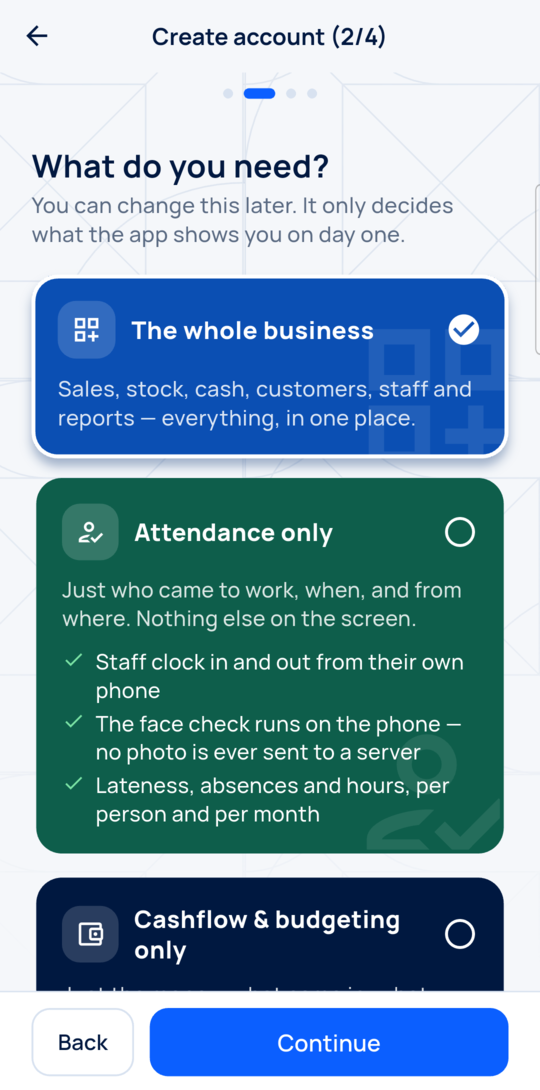
Choose Attendance only
Under What do you need?, choose Attendance only. You can change this later.
-
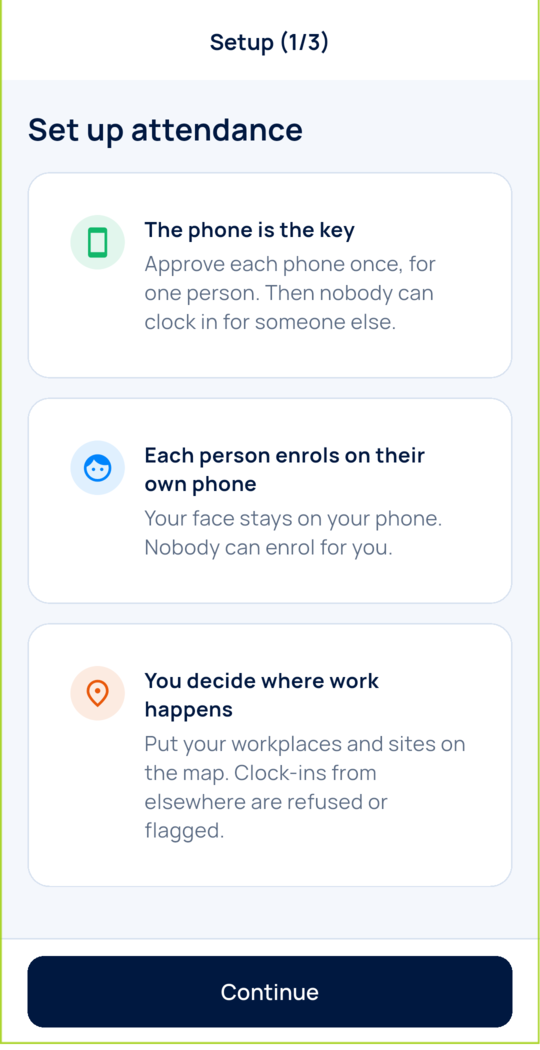
Read the three rules
Each person uses their own approved phone, and the face stays on that phone.
-
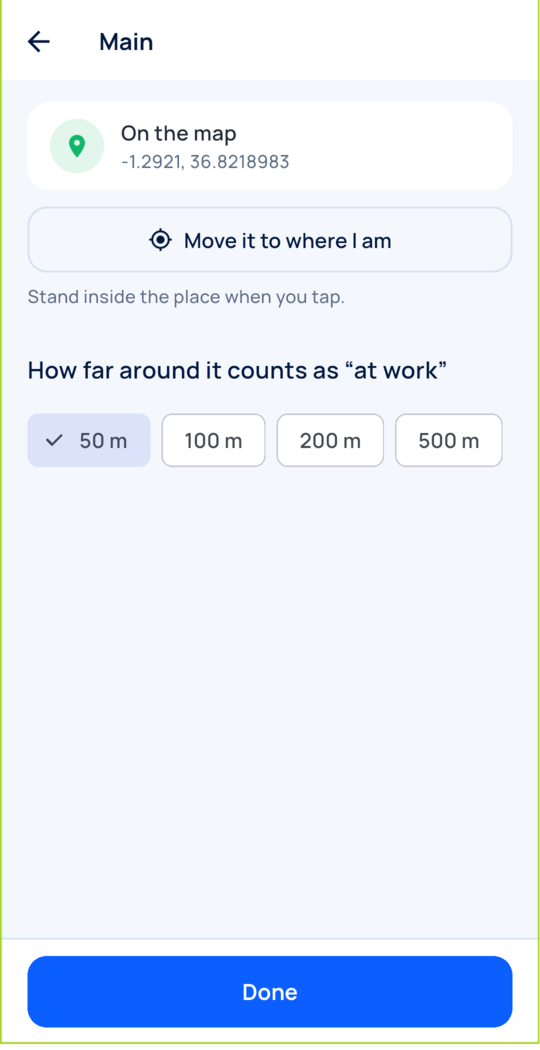
Place your workplace
Stand inside your workplace and tap Move it to where I am. Then pick how far around counts as at work.
-
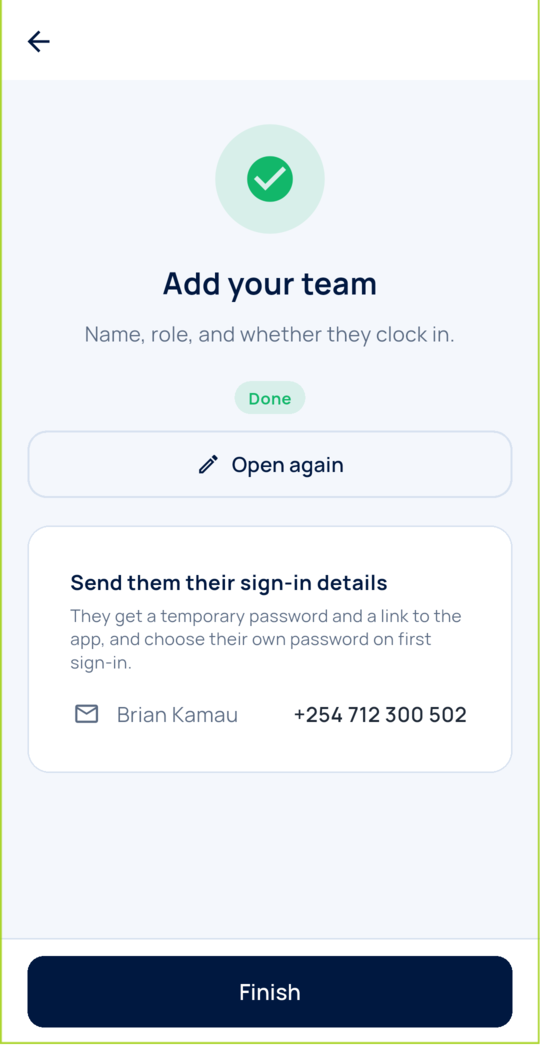
Add your team
Add each employee with their name and mobile number. Give them the sign-in details.
-
The employee sets up their face
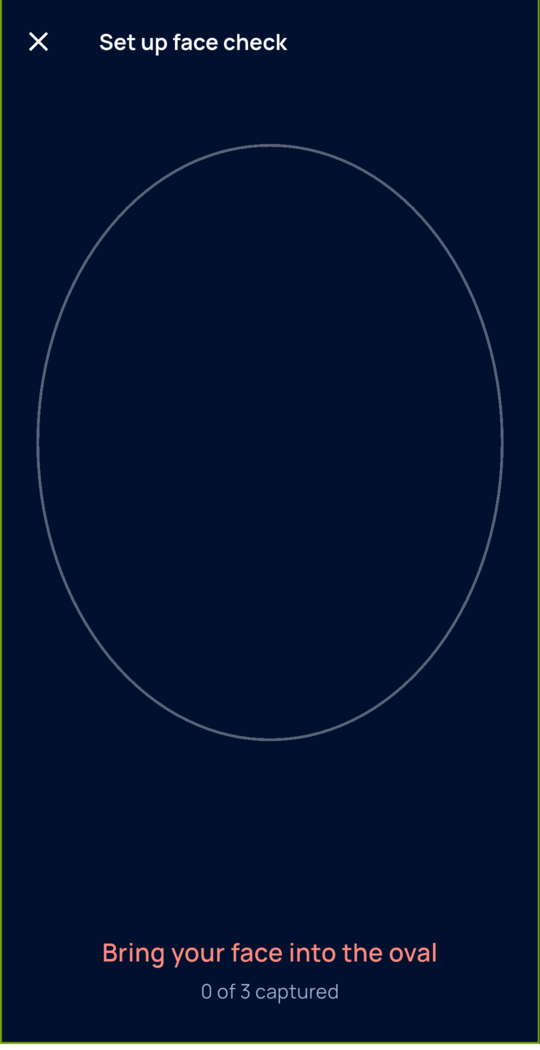
On their own phone, they sign in, choose a password, tap Clock in and then Set up my face.
-
Approve their phone
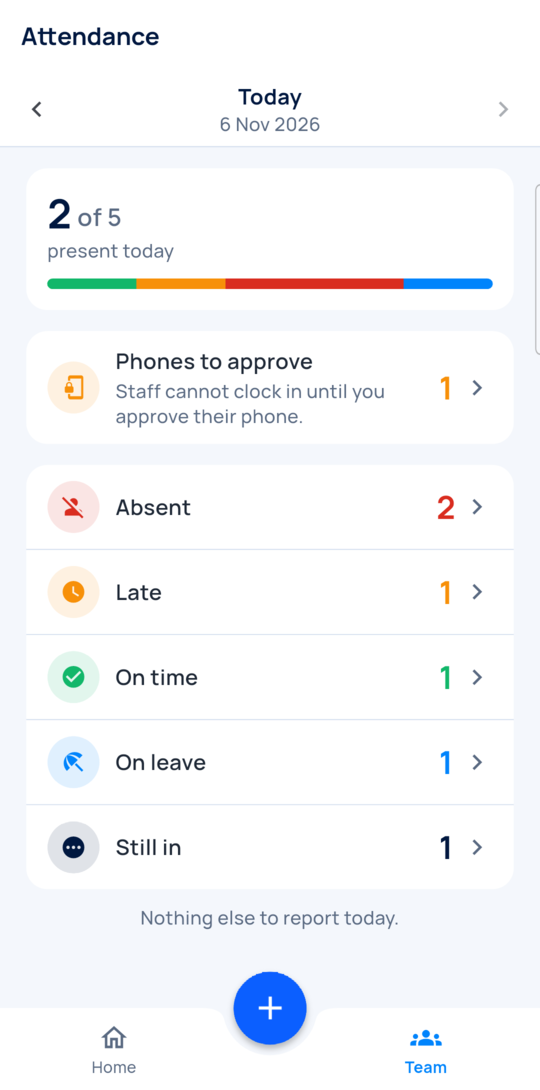
On Team, open Phones to approve and tap Approve. They cannot clock in until you do.
-
The first clock-in
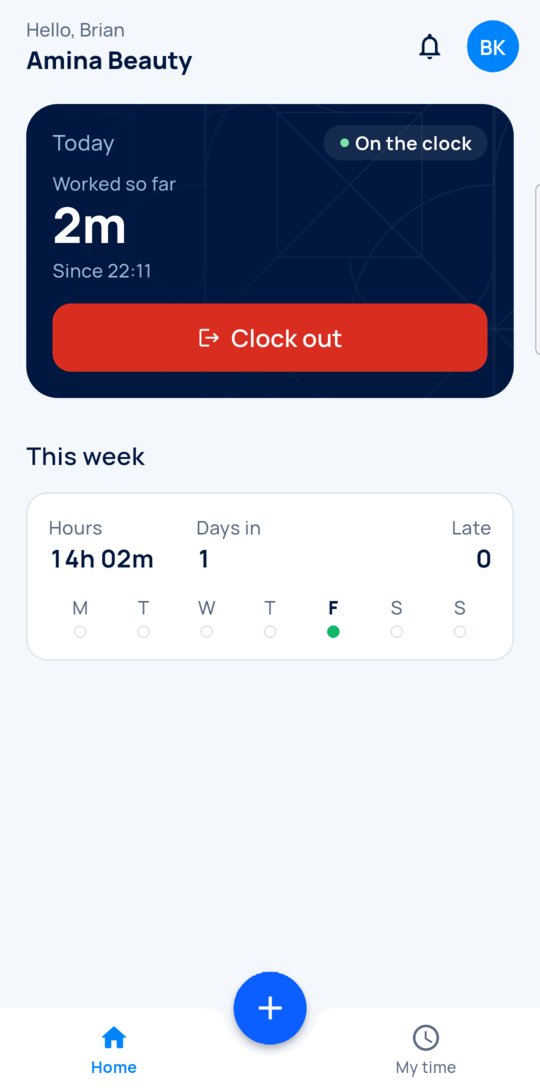
The employee taps Clock in and looks at the camera. The card then says On the clock.
-
Set working hours
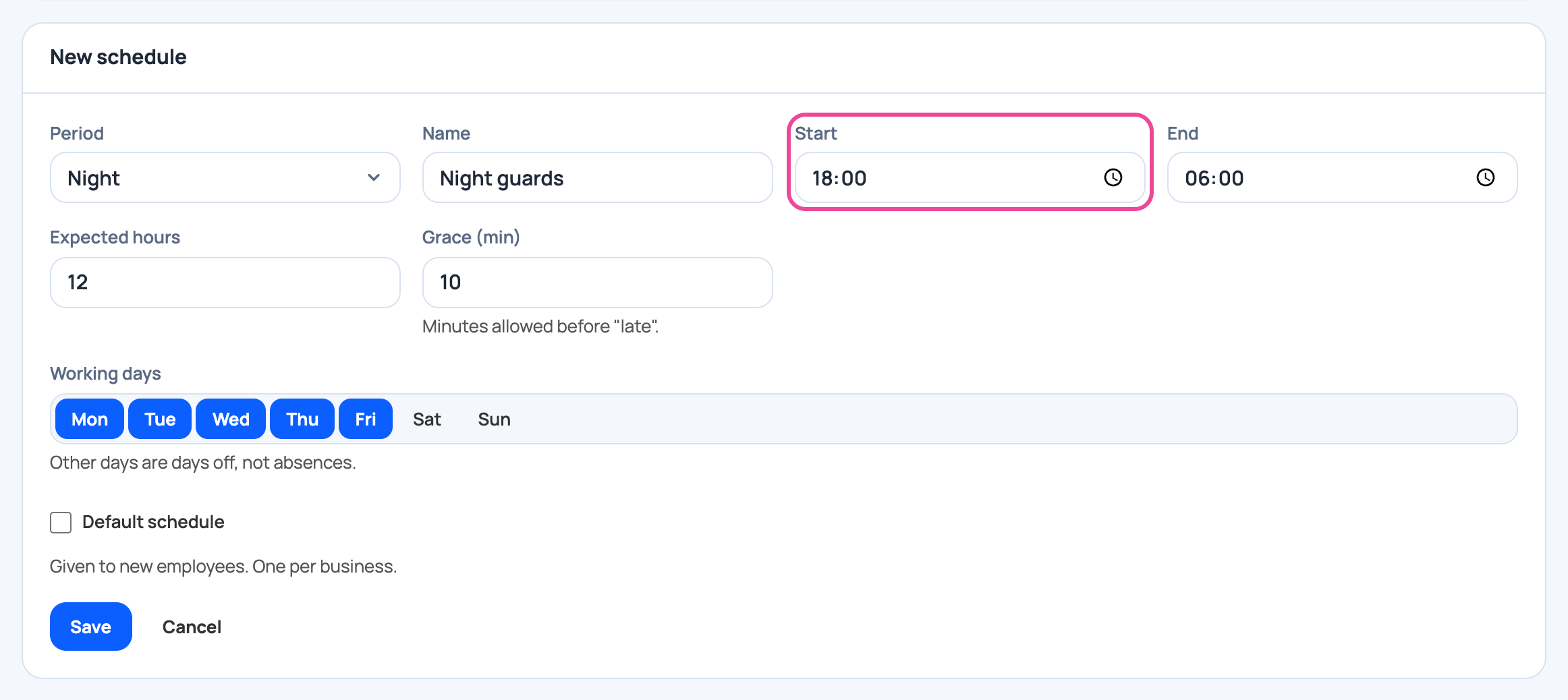
Add a schedule to each person. Without one, nobody can count as late.
-
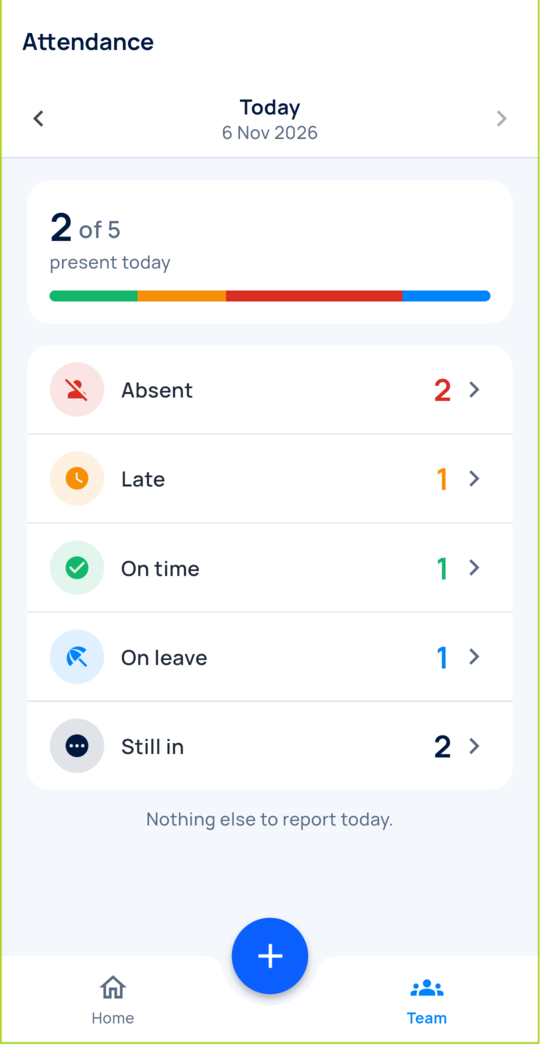
See today
Team shows who is on time, late, absent or on leave.
-
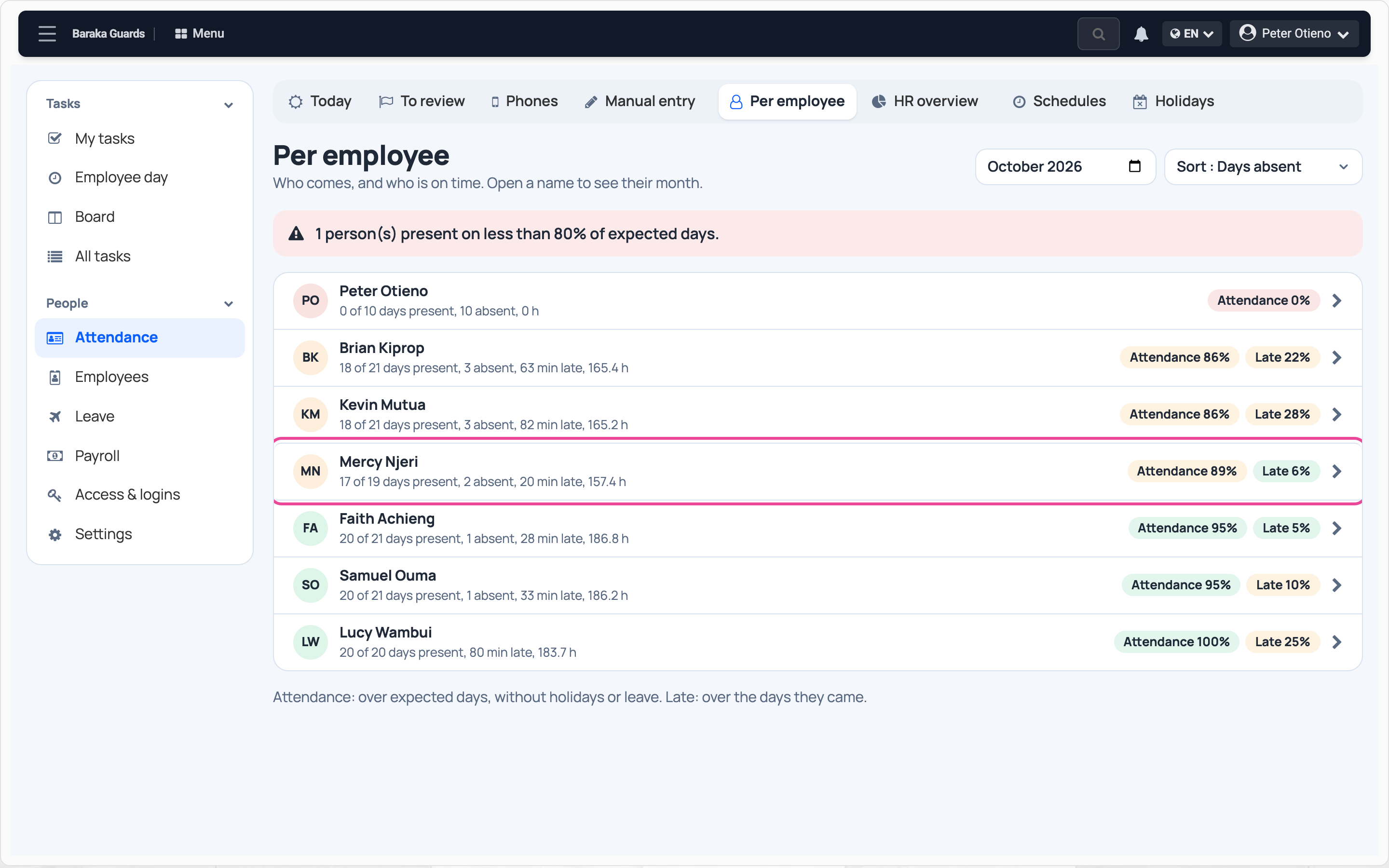
Check the month
Attendance reports shows each person’s days and hours for the month.
Every day
- Employees tap Clock in on arrival and Clock out on leaving.
- You open Team to see today.
- You check Problem punches for anything flagged.
What you see
You see a real clock-in with its time, its place and its face check.
Time and effort
Each person sets up once: their password, their face and your approval. After that a clock-in is one tap and one look at the camera.
Common mistakes
- Placing the workplace from home. Do it standing on site, or everyone reads as far away.
- Forgetting to approve a phone. The employee stays blocked until you do.
- Skipping the schedule. Nobody shows as late without one.
Next step
More guides
- 3How to find unexplained stock differencesPurchases, sales and a count, then the difference.
- 4How to calculate your real food cost and price a dishRecipe and purchase costs, then the price.
- 5How to plan next week’s purchases from your sales historyYour history in, a shopping list out.
- The Start here: one result at a time appStart here: one result at a time
- All guidesLearn