 Aser One
Choose how staff clock in
Who clocks in, how their phone checks them, and what is refused.
On the computer, 5 steps
Guide 1 of 7 in Attendance
-
Open the settings
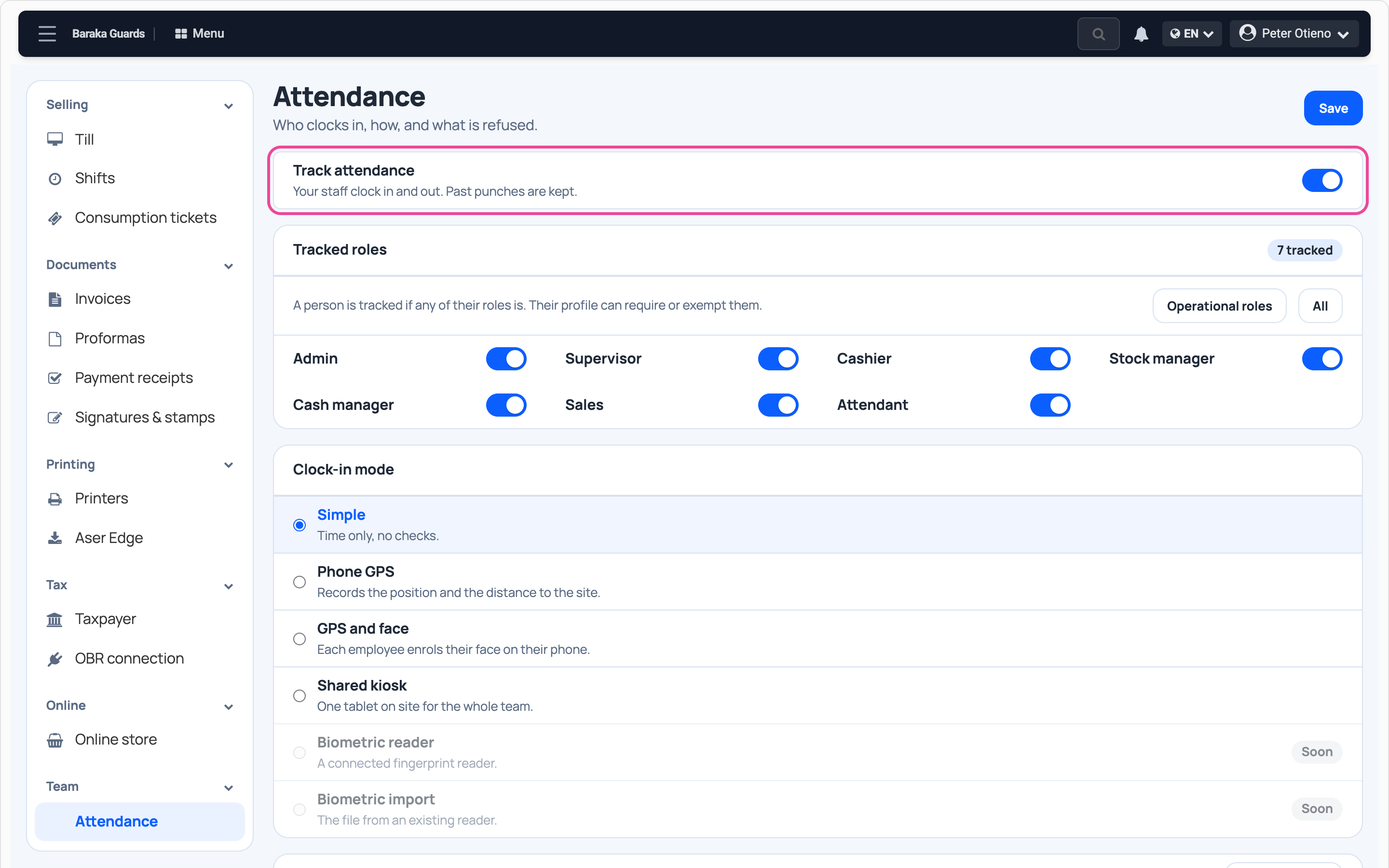
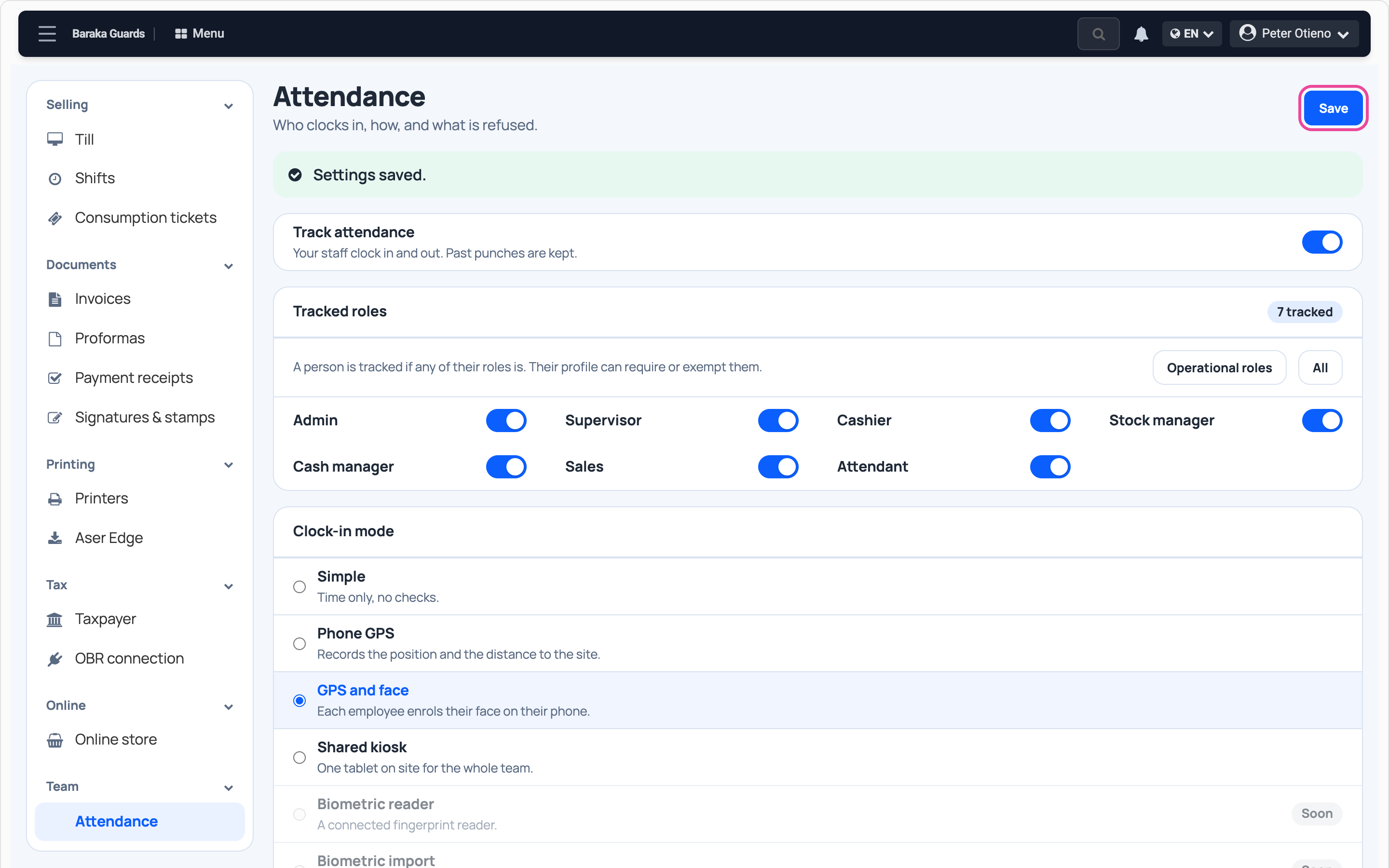
In Settings › Team, open Attendance. Track attendance must be on.
-
Pick who is tracked
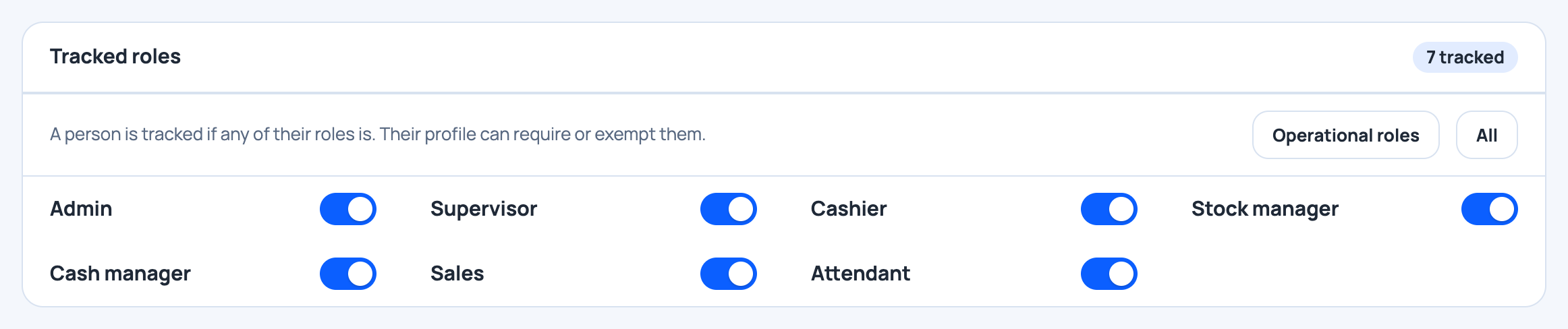
Switch on the roles that clock in. Operational roles selects the usual ones.
-
Pick the mode
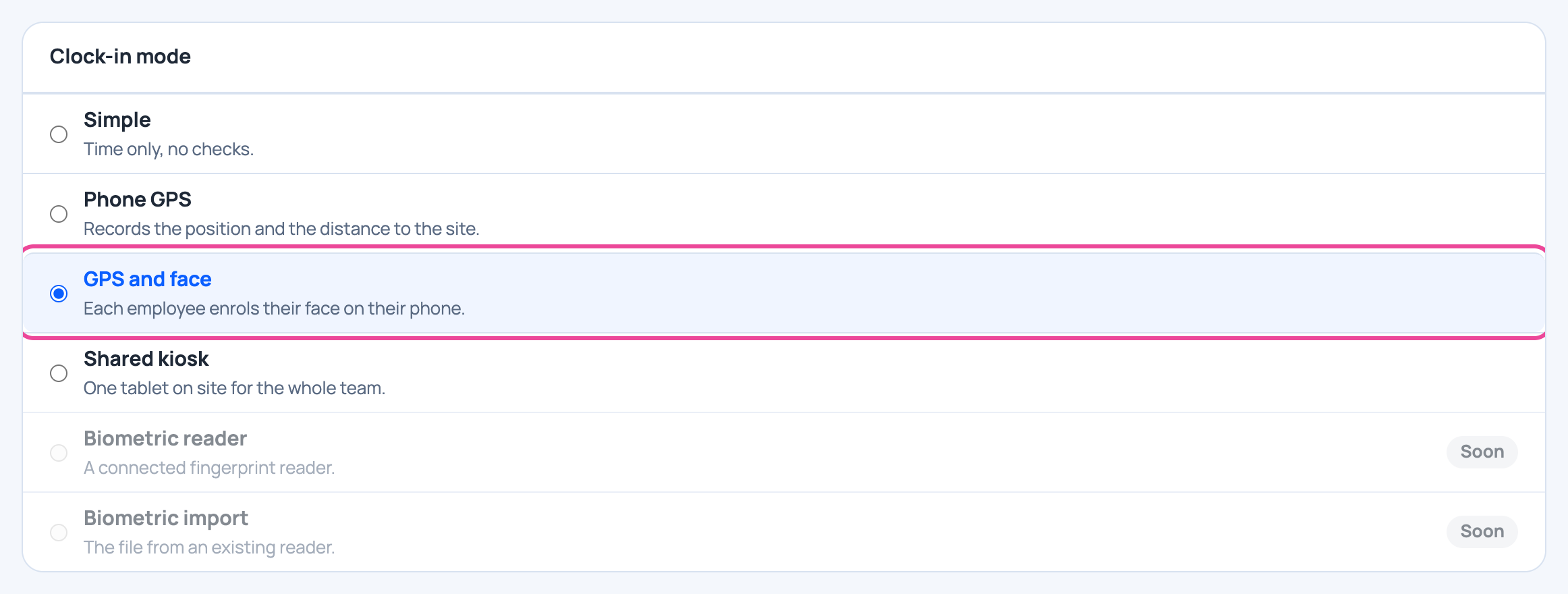
GPS and face: each person clocks in on their own phone, at the site.
-
Set the checks
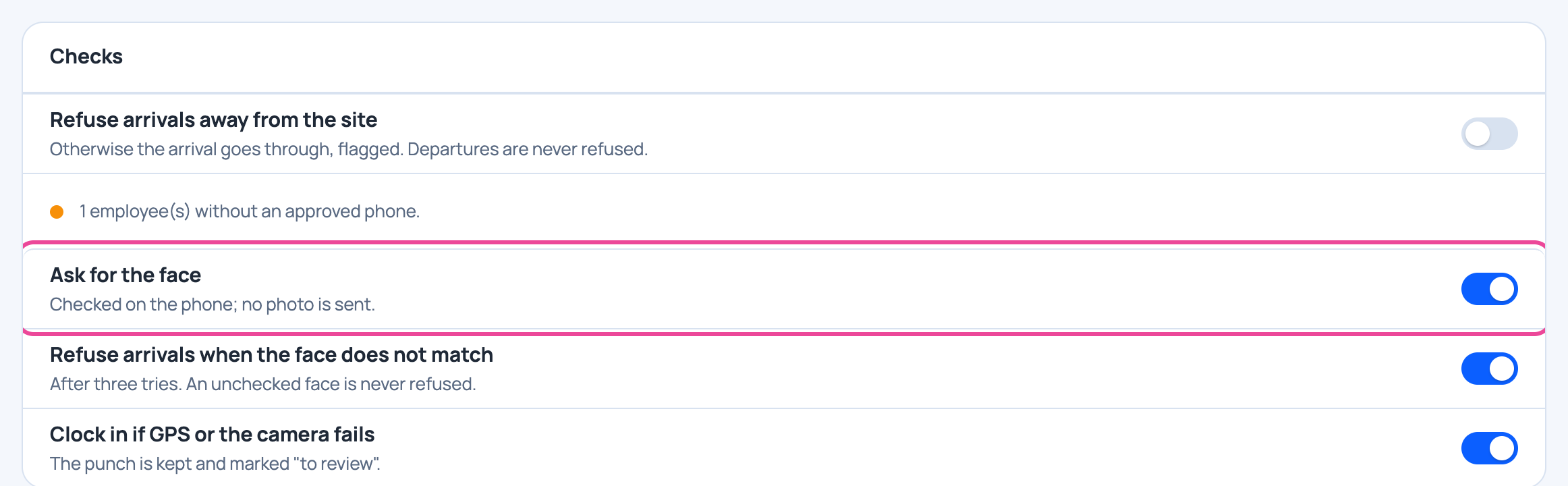
Switch on Ask for the face. Choose whether a wrong place or face is refused or only flagged.
-
Save
Click Save. Phones use the new rules at the next clock-in.
Next step
More guides
- 3Clock in on your phoneSet up your face, clock in at work, clock out when you leave.
- 4See who is at work todayPresent, late and absent staff, live.
- 5Record a missed clock-inEnter a worked day by hand, with a reason.
- 6Review flagged punchesCheck, correct and clear flagged punches.
- 7Check a month of attendanceDays present, absences and lateness per person.
- The Attendance appAttendance
- All guidesLearn