 Aser One
Clock in on your phone
What each employee does: set up their face once, then clock in and out.
On the phone, 6 steps
Guide 3 of 7 in Attendance
-
Set up your face
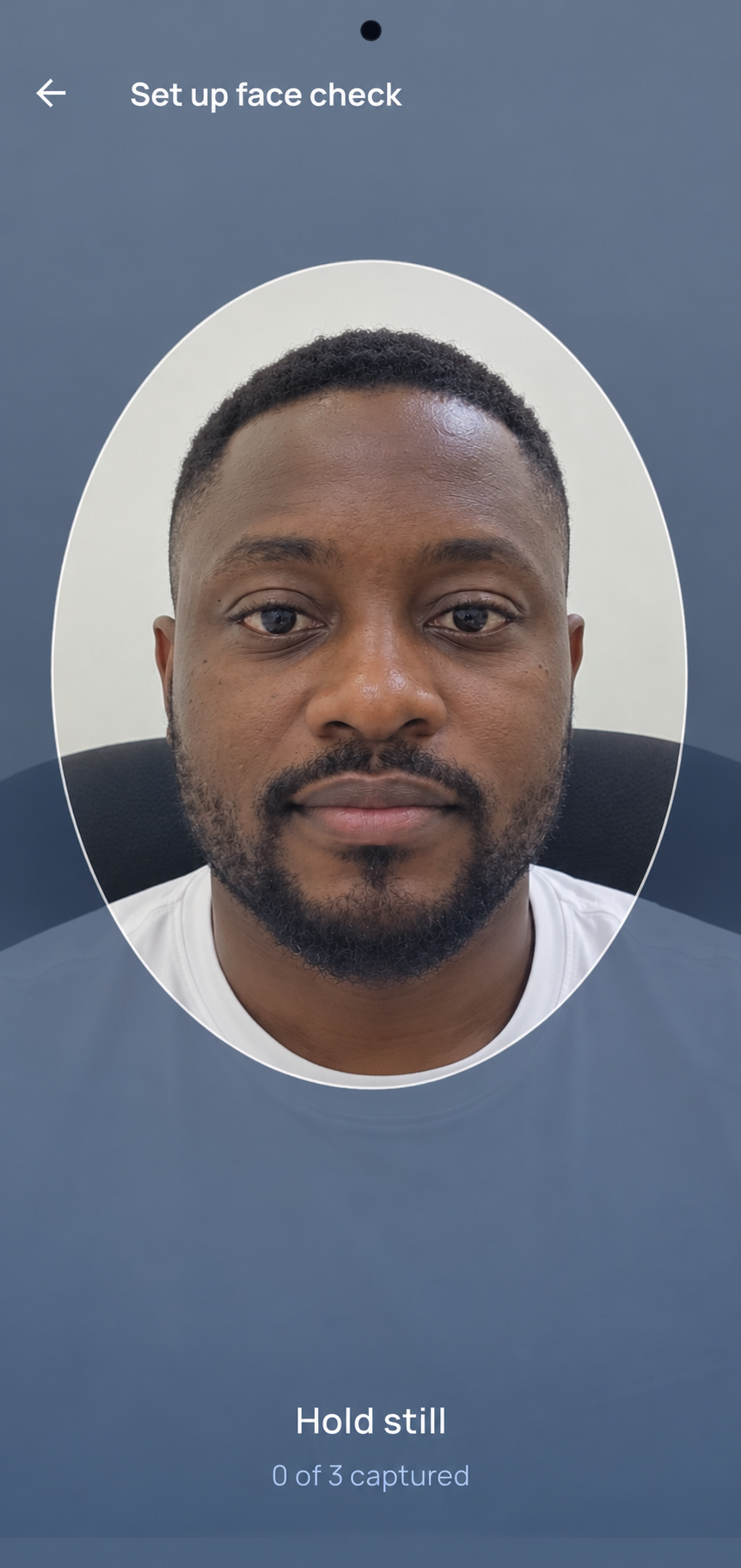
The first time, the app asks for your face. Hold still until all 3 are captured.
-
Check your phone
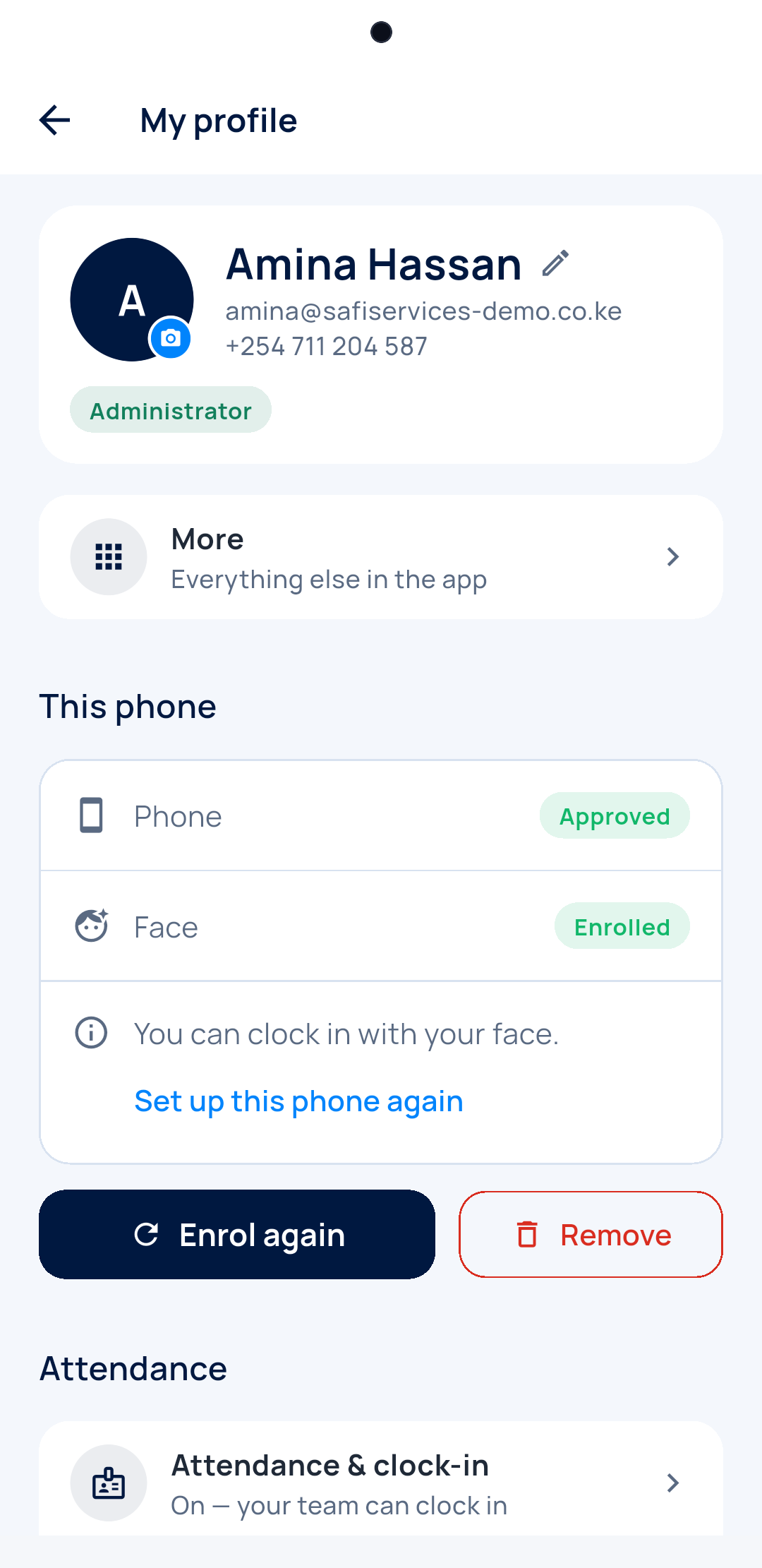
In My profile, Phone says Approved and Face says Enrolled. If the phone is waiting, ask your manager.
-
Clock in at work
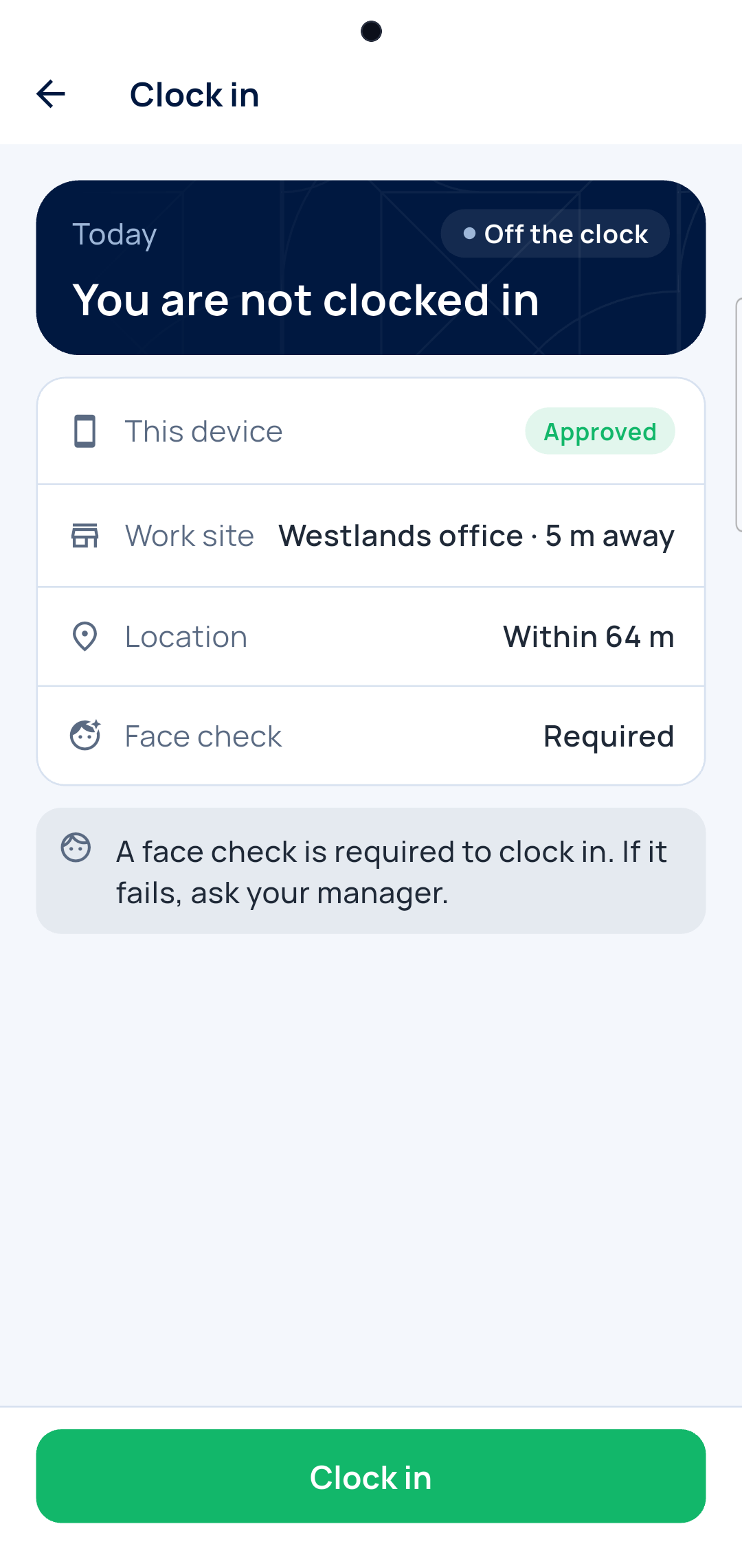
Open Clock in, check the screen, then tap Clock in. Look at the phone for the face check.
-
See the green screen
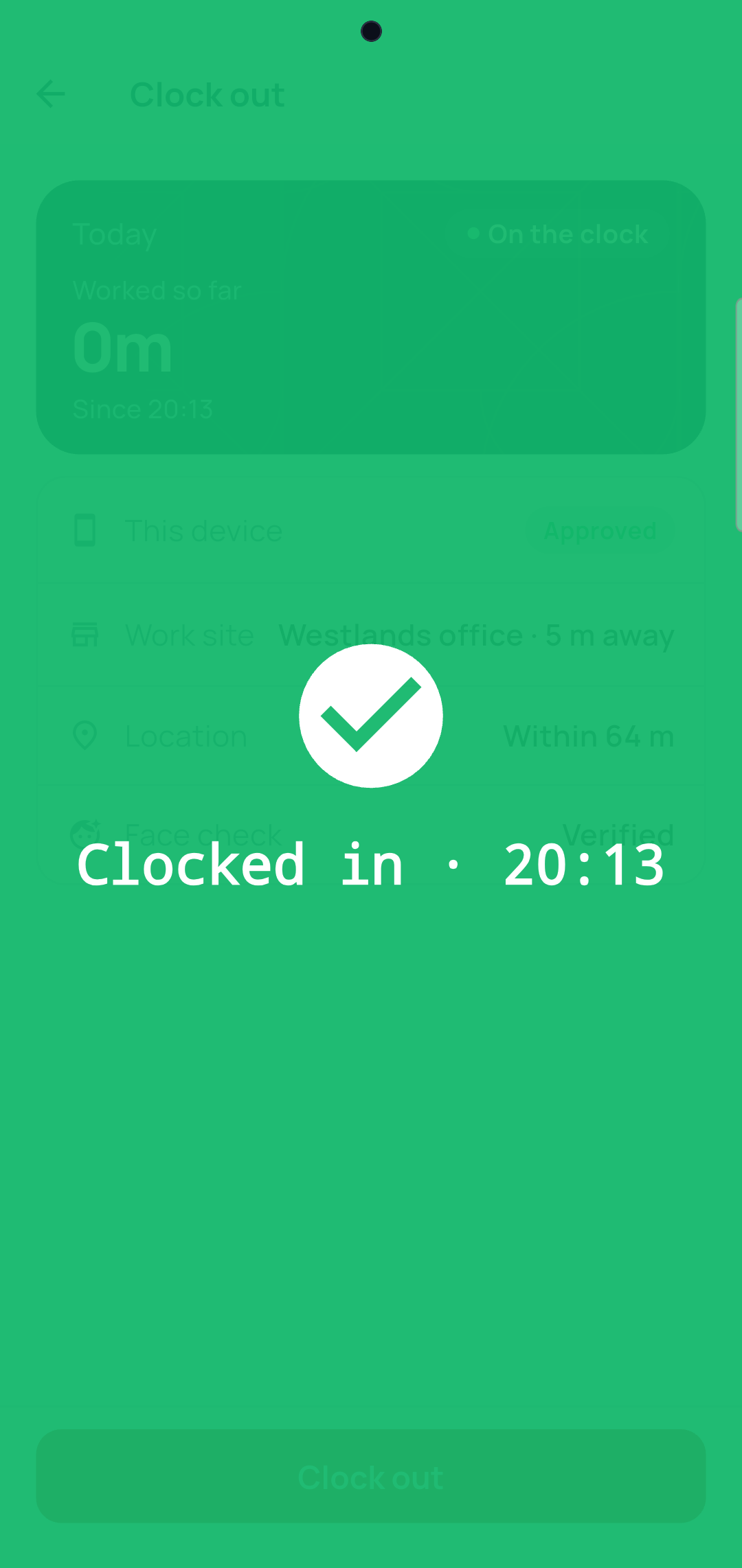
Green means you are clocked in. If it fails, ask your manager.
-
Clock out
Home shows your hours today. When you leave, tap Clock out.
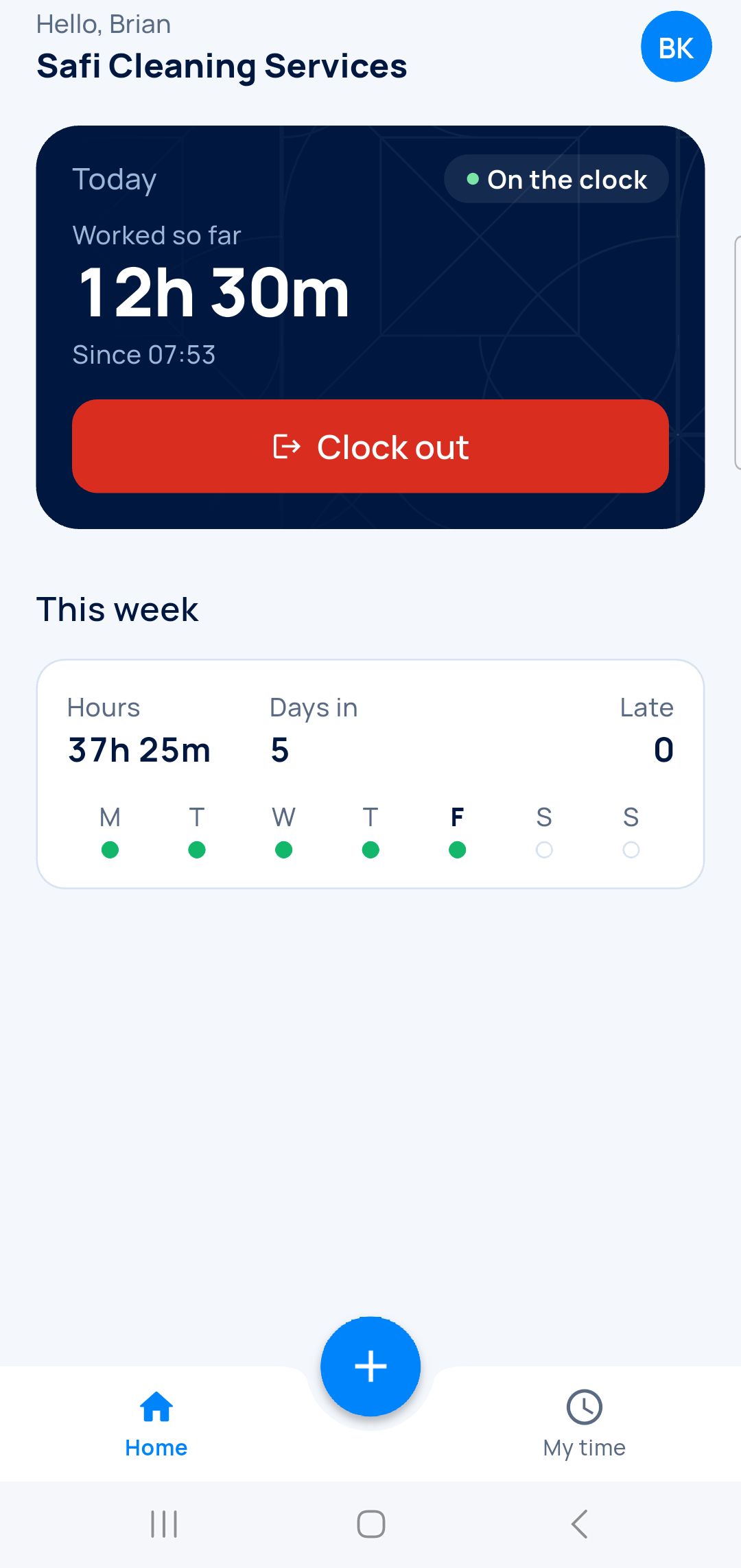
-
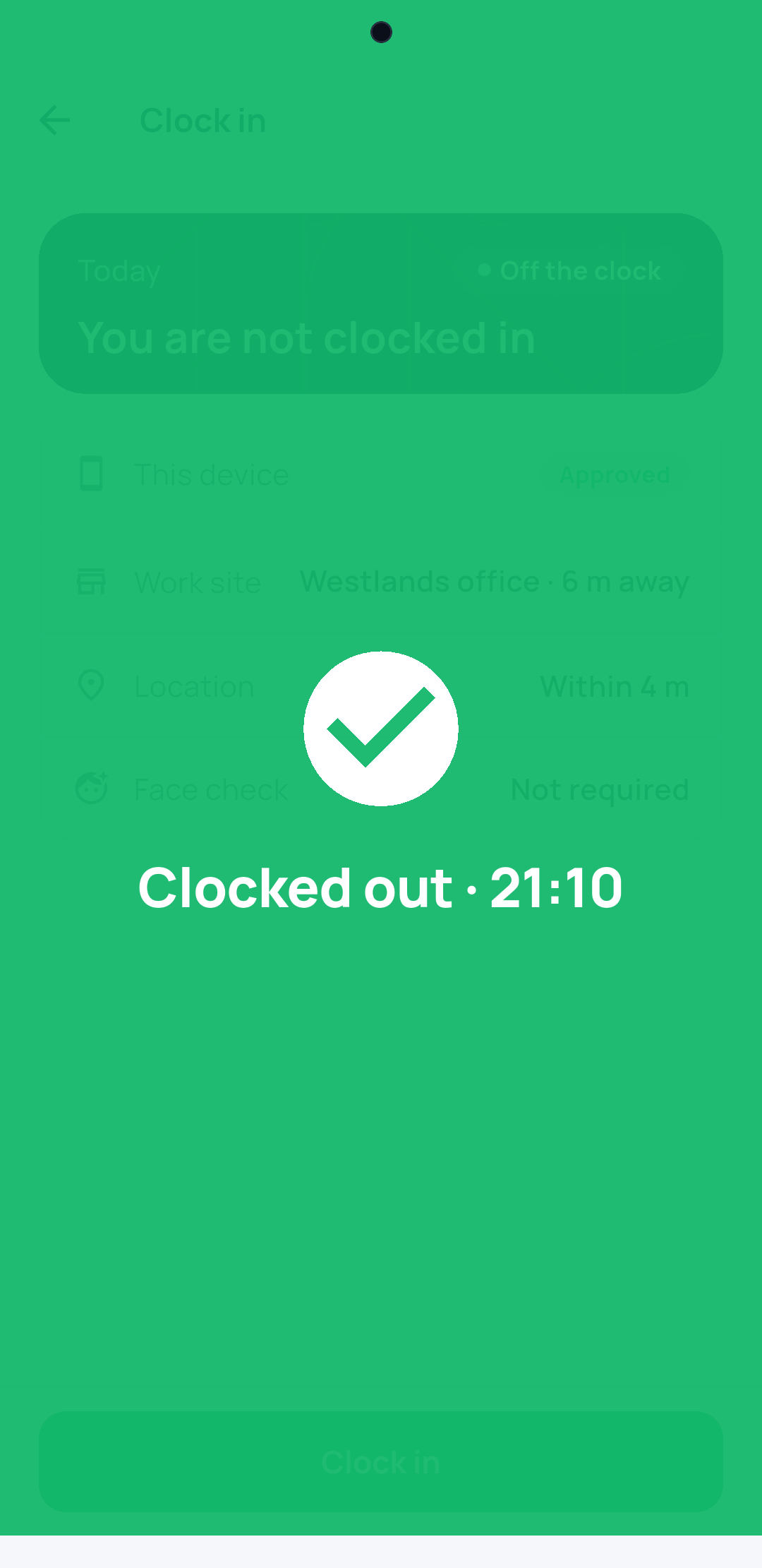
See it saved
Green again means you are clocked out, with the time.
Next step
More guides
- 1Choose how staff clock inPick the roles, the clock-in mode and the checks.
- 2Set working hoursAdd a schedule: start, end, grace and working days.
- 5Record a missed clock-inEnter a worked day by hand, with a reason.
- 6Review flagged punchesCheck, correct and clear flagged punches.
- 7Check a month of attendanceDays present, absences and lateness per person.
- The Attendance appAttendance
- All guidesLearn