 Aser One
What to buy next week
One list: each item, how much, how sure, and the budget.
On the computer, 5 steps
Guide 7 of 8 in Restaurant & kitchen
What you need
- Your sales and purchases of past weeks, recorded in the app.
- A recent stock count, for the surest list.
Start your free trial
Press Create an account below. Your free trial starts straight away, and no card is needed.
-
Build the week
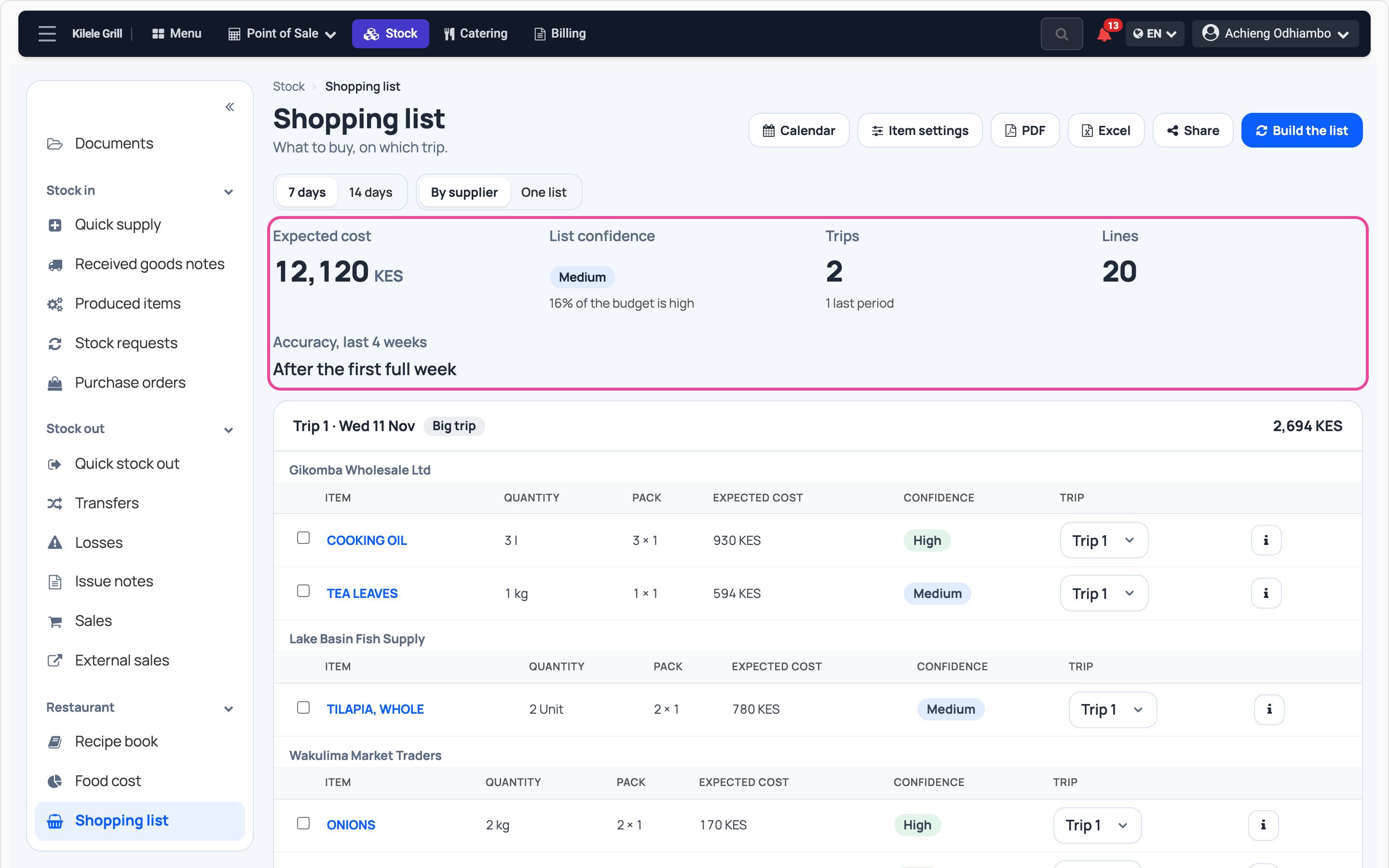
In Stock › Shopping list, choose 7 days and press Build the list. On top: the budget and how sure the list is.
-
Each item
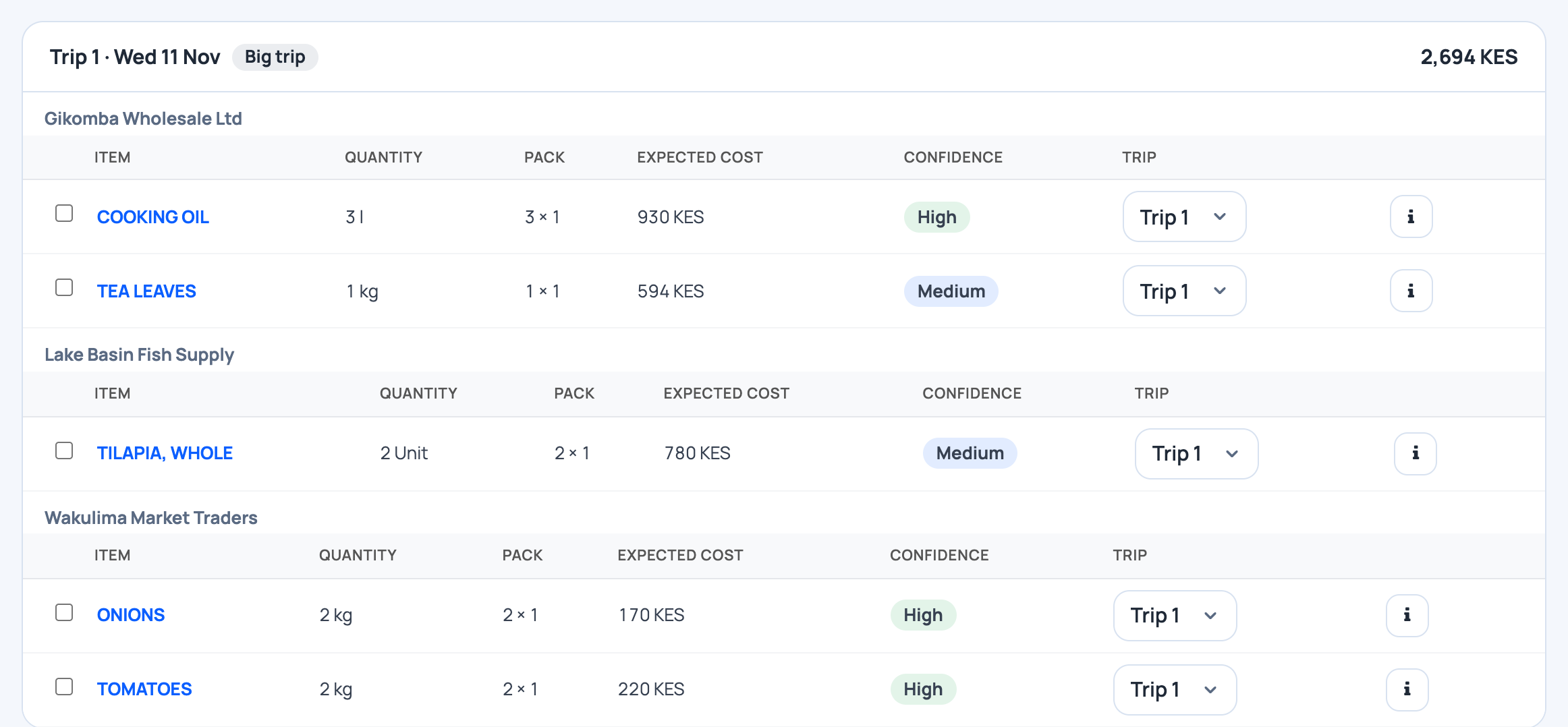
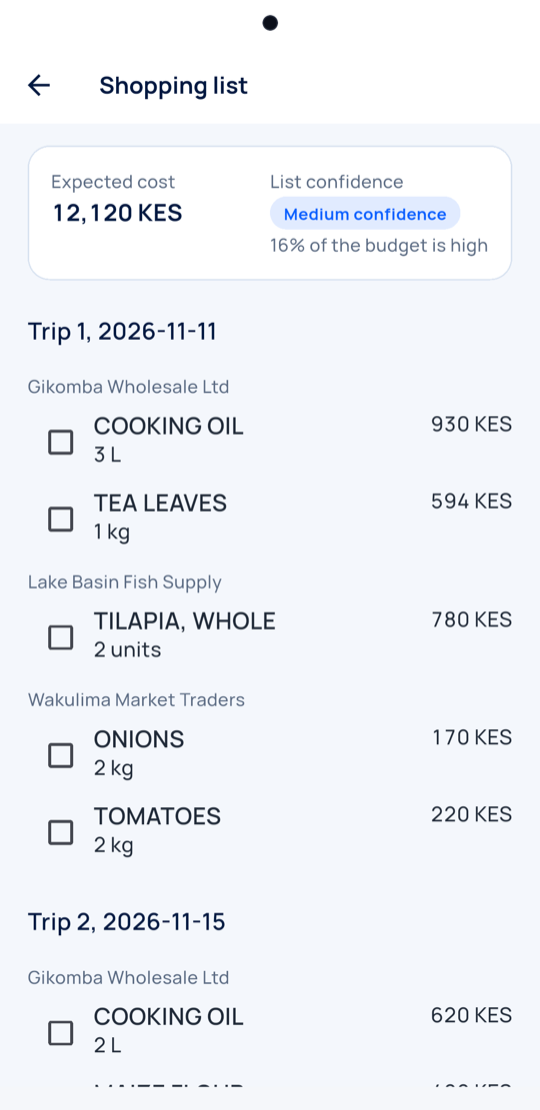
Each line gives the quantity, the expected cost and its confidence.
-
No set supplier?
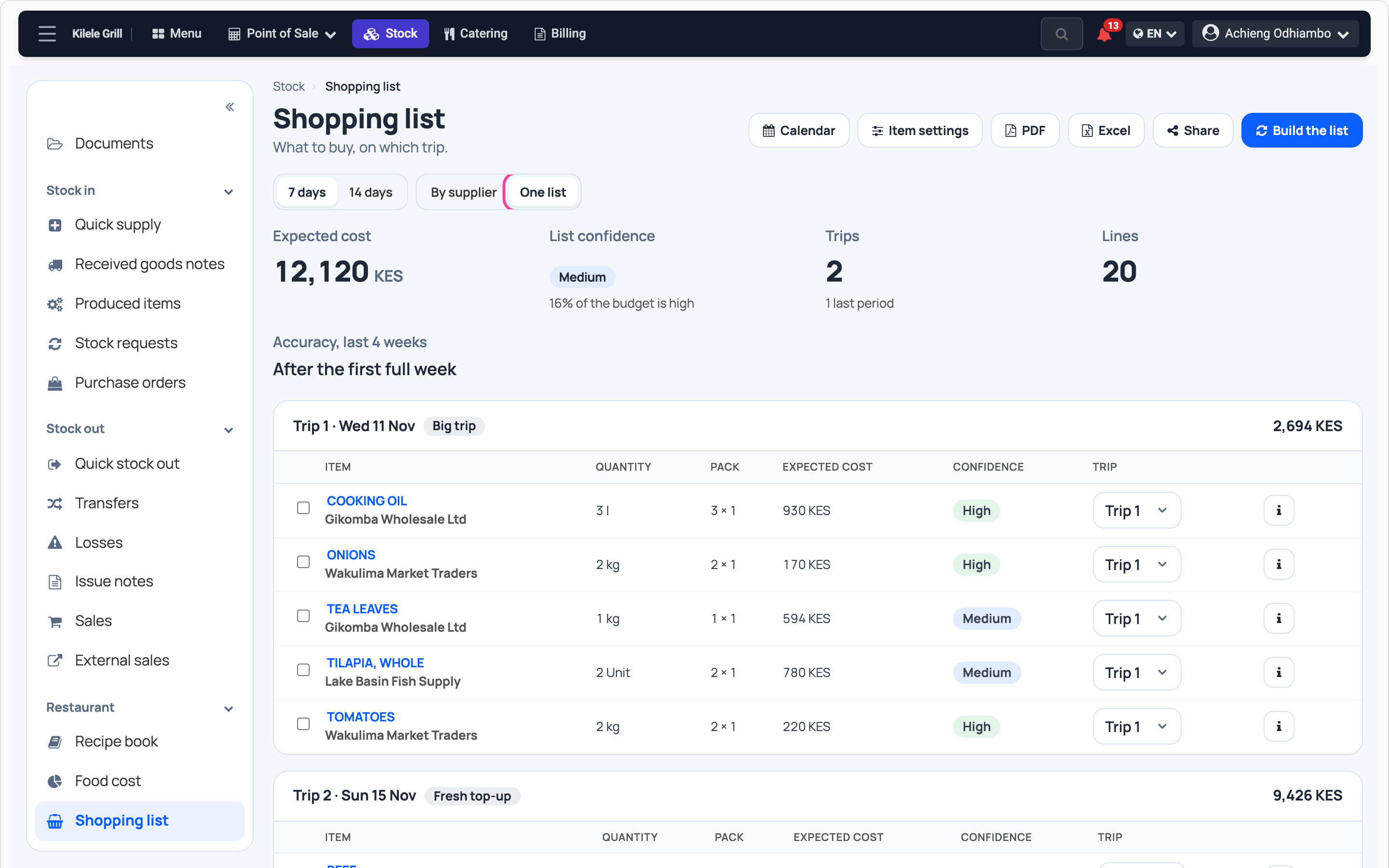
Press One list to see each trip in one table. To buy a line elsewhere, open it with i and pick the supplier.
-
Print it
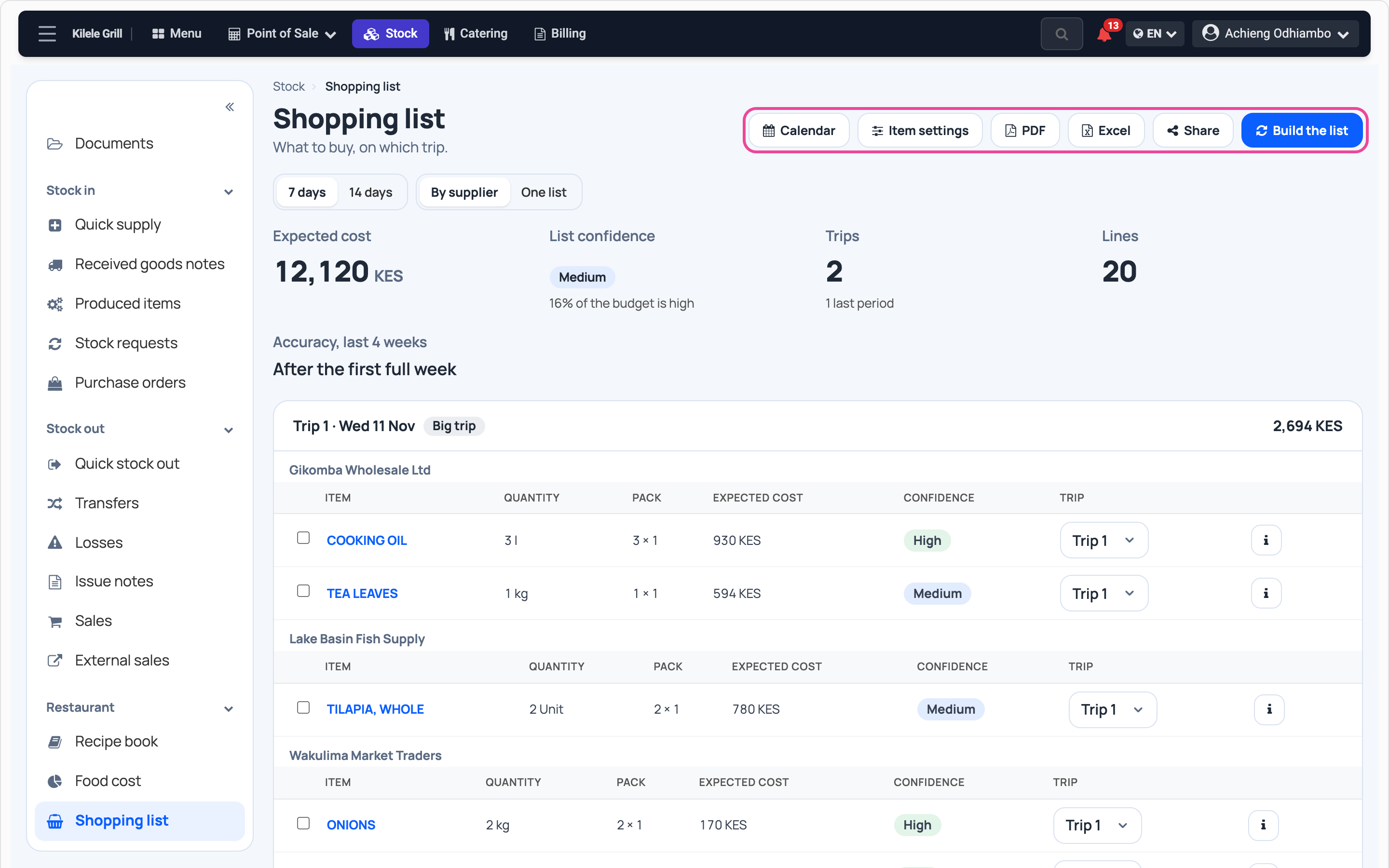
Press PDF to print it, or Excel to change it first.
-
On your phone
In Stock › Stock reports › Shopping list, tick each item as you buy it.
Every day
- Build the list before the market.
- Count your stock each month: the list gets surer.
- Change a line when you know better, such as a holiday.
What you see
Next week’s shopping list with its budget, ready to print.
Time and effort
One press once your sales and purchases are in the app.
Common mistakes
- Building with no recent count. The list then says Medium at best.
- Taking the budget as a price. It uses your last purchase prices.
Next step
More guides
- 1Take a table orderOrder for a table and send it to the kitchen.
- 2Follow kitchen ordersStart and finish each kitchen ticket.
- 3Close the billPrint the bill and take the payment.
- 4Write a recipeList the ingredients of a dish and see its cost.
- 5Check your food costSee which dishes cost too much to make.
- 6Food costing from A to Z: bases, dishes and what they useCost a dish built on a base, then track what it uses.
- The Restaurant & kitchen appRestaurant & kitchen
- All guidesLearn