 Aser One
-
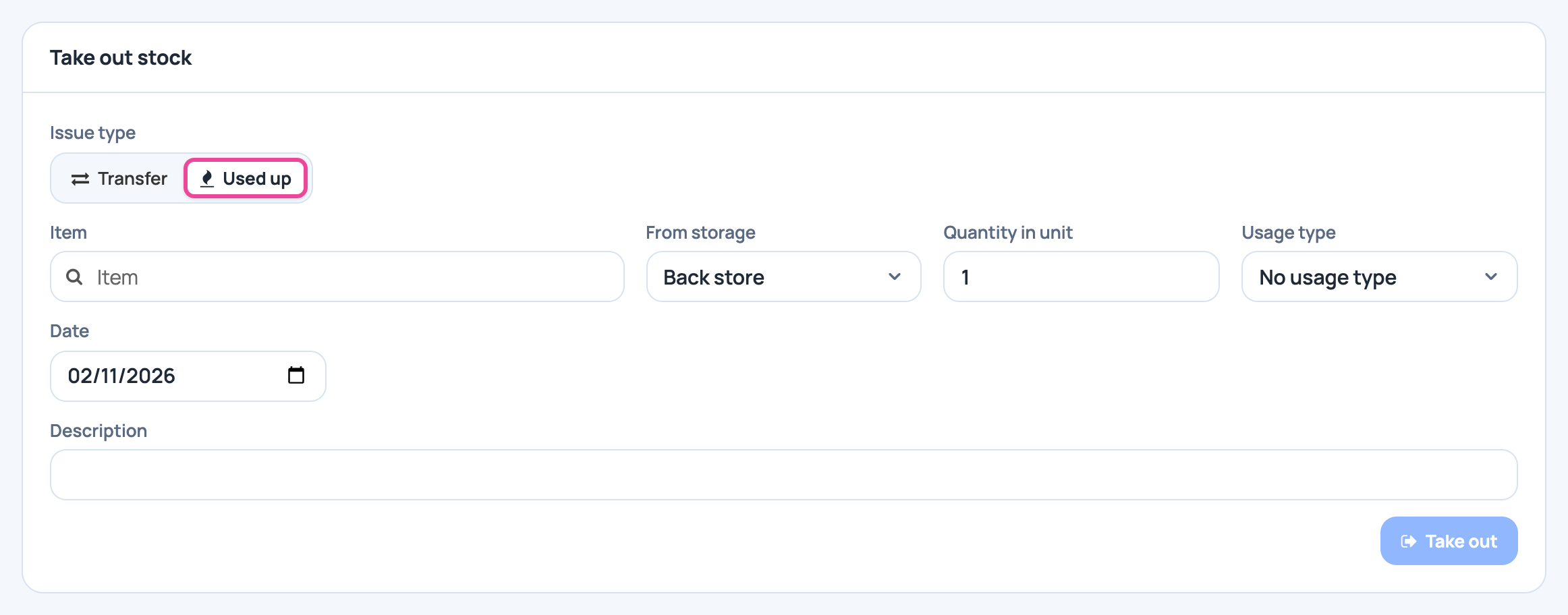
Choose Used up
In Stock, open Quick stock out and click Used up.
-
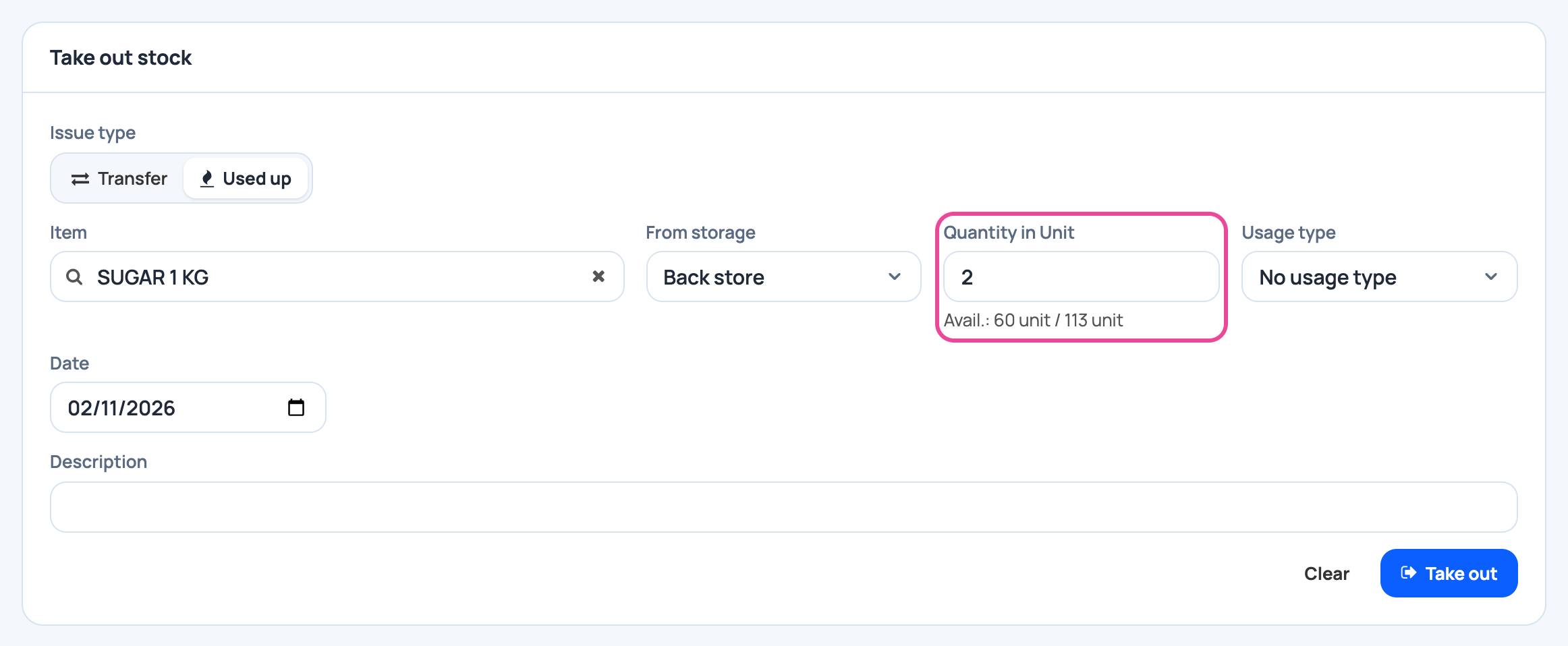
Item and quantity
Pick the item and type how many you took.
-
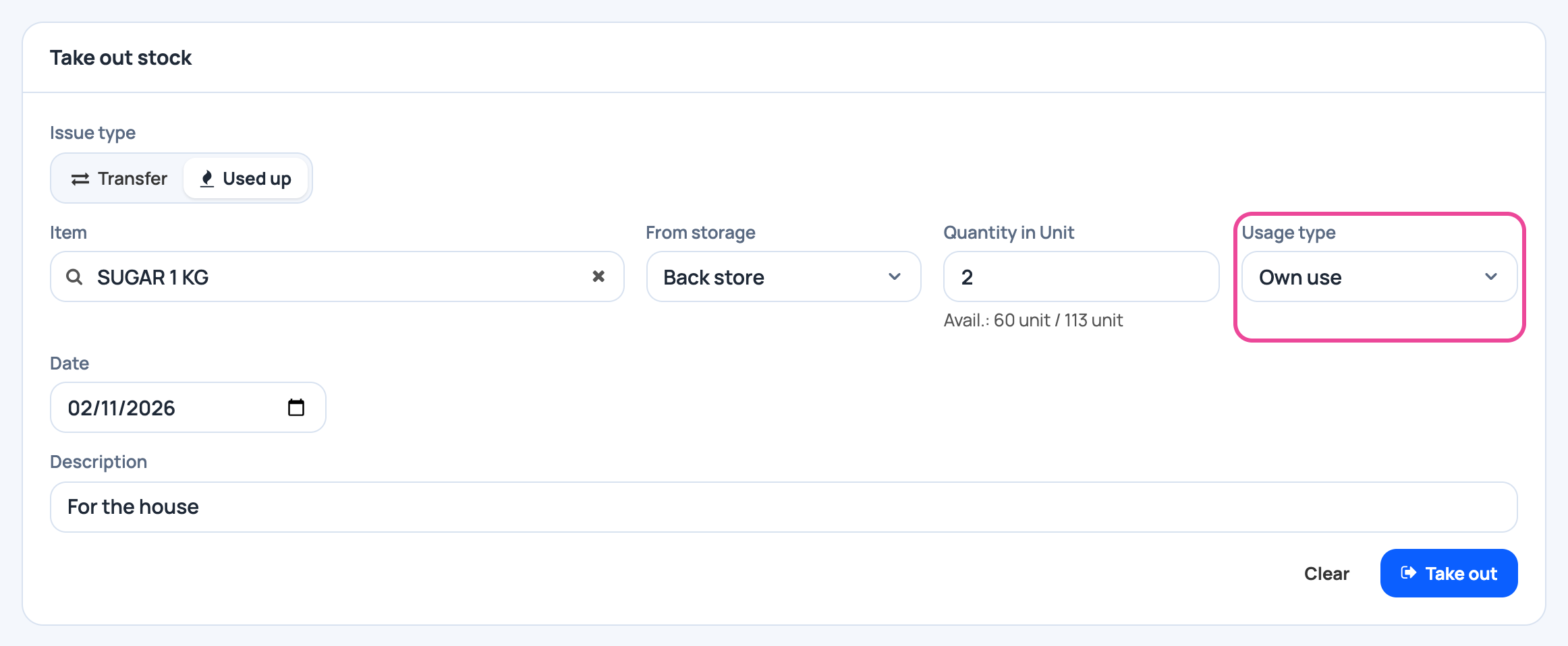
Say why
Pick the usage type, like Own use or Staff meals.
-
Take it out
Click Take out. It shows in the list and leaves your stock.

-
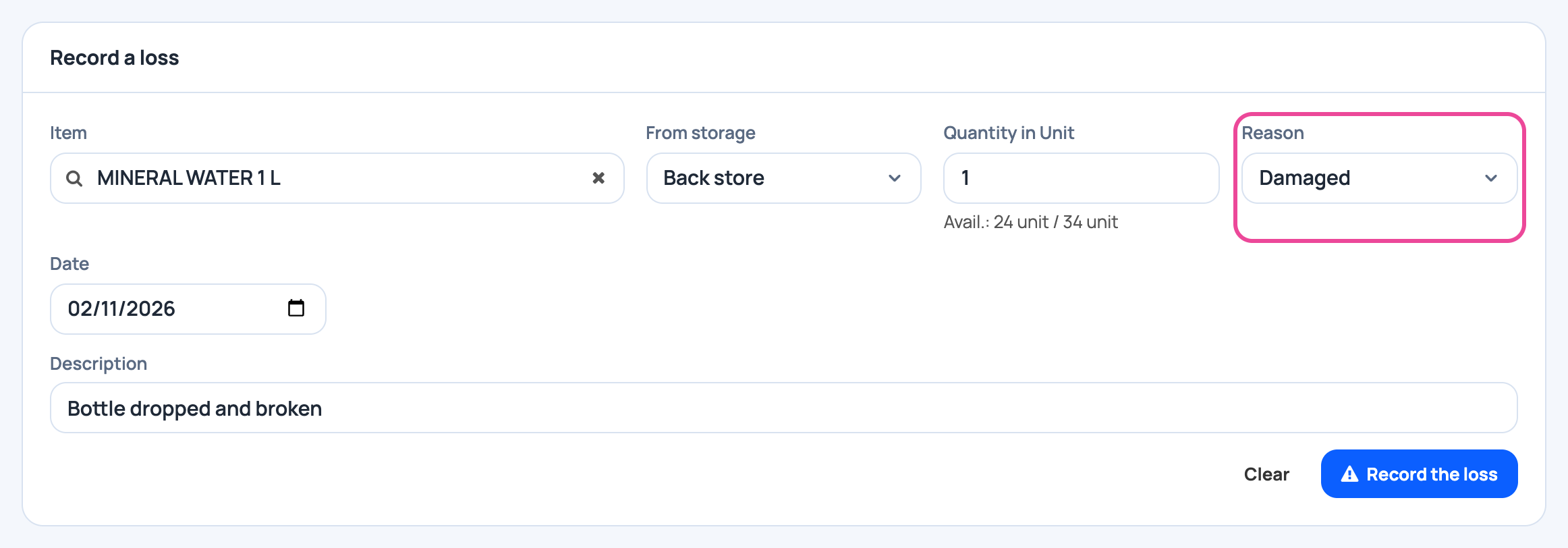
Broken or expired?
Use Losses instead: pick the item, the quantity and the reason.
-
Record the loss
Click Record the loss. It shows with its reason.

Next step
More guides
- 1Create an itemAdd a product, its price and its opening stock.
- 2Stock in from a supplierRecord a delivery: item, quantity, price and supplier.
- 5Count your stockCount a shelf and fix the stock to match.
- 6Import items from ExcelAny Excel list works. Check the columns, review, and your items are ready.
- 7Check your stockThe overview and the below-minimum list, in a minute.
- The Stock appStock
- All guidesLearn