 Aser One
-
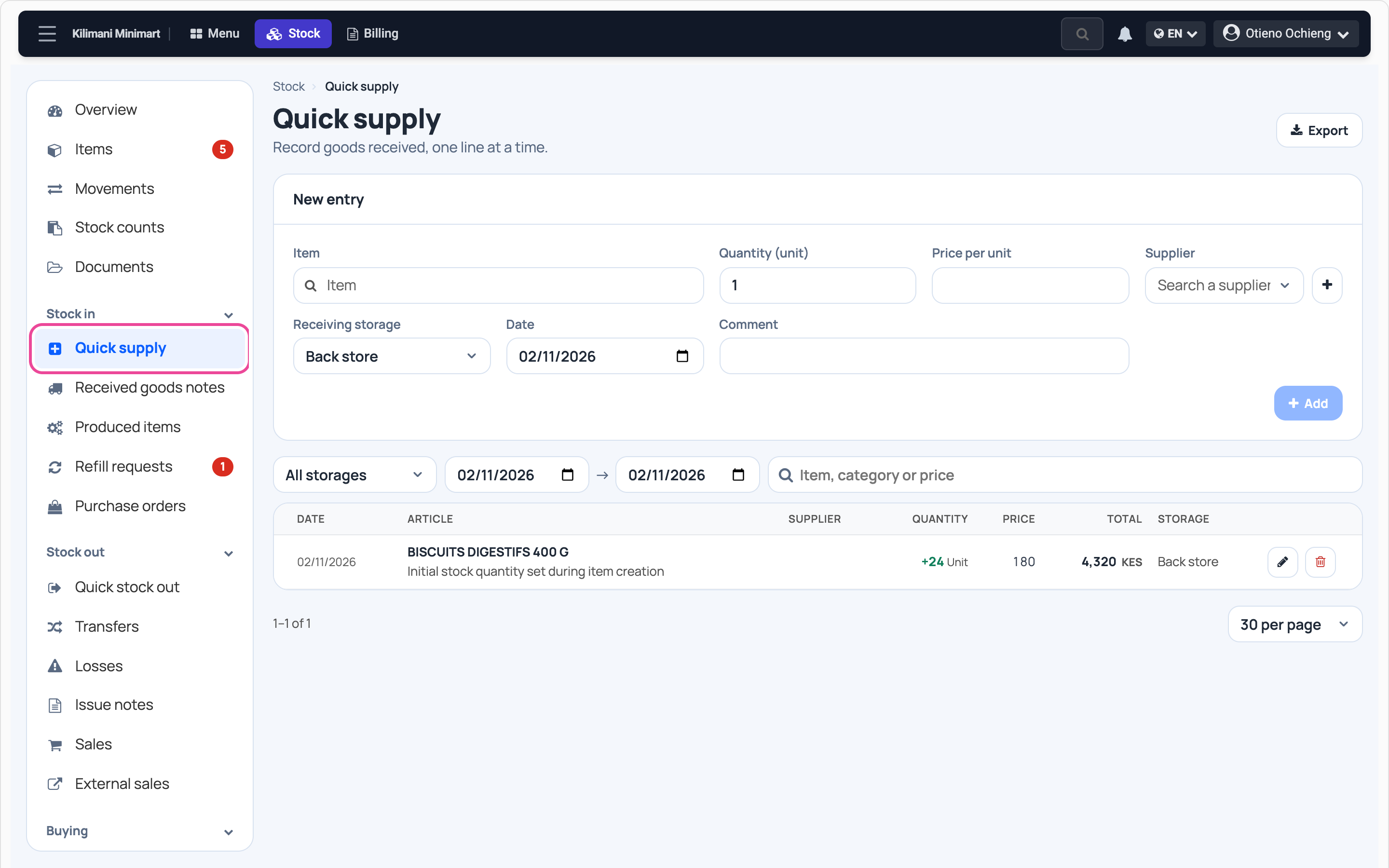
Open Quick supply
In Stock, click Quick supply under Stock in.
-
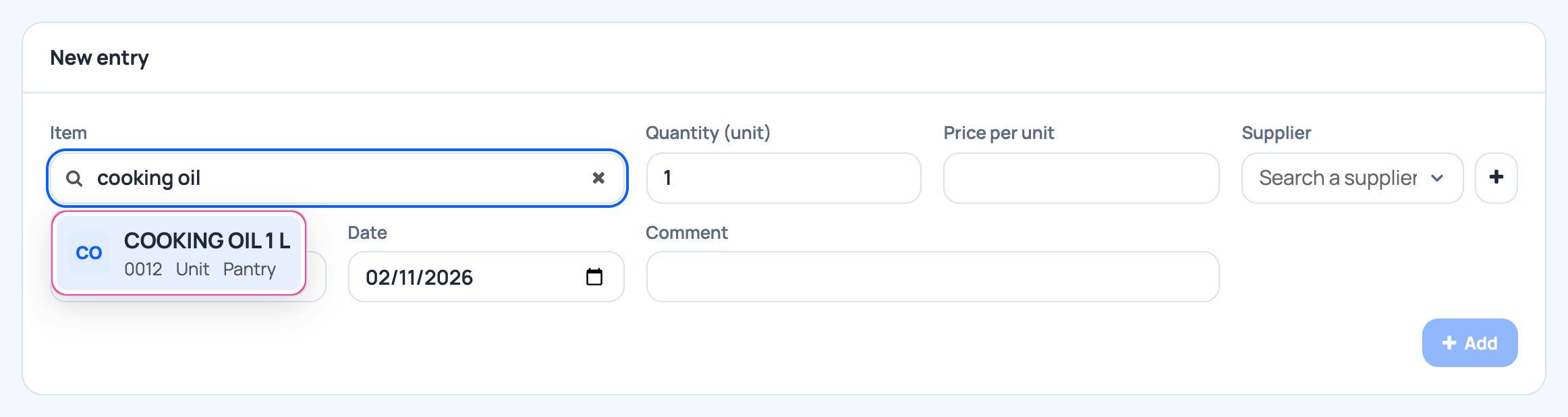
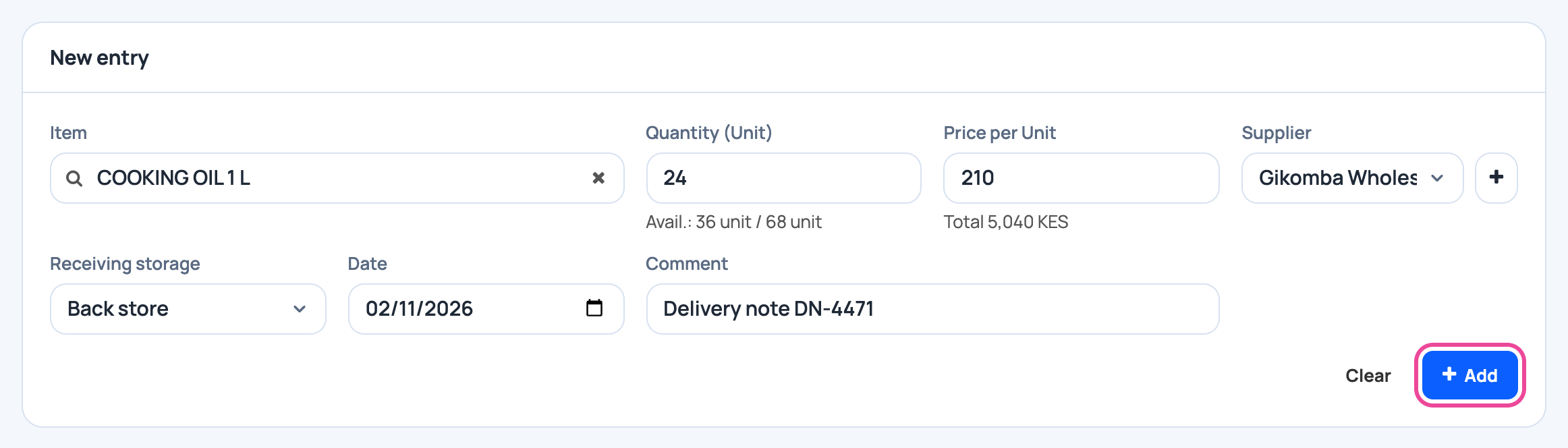
Pick the item
Type part of its name, then pick it from the list.
-
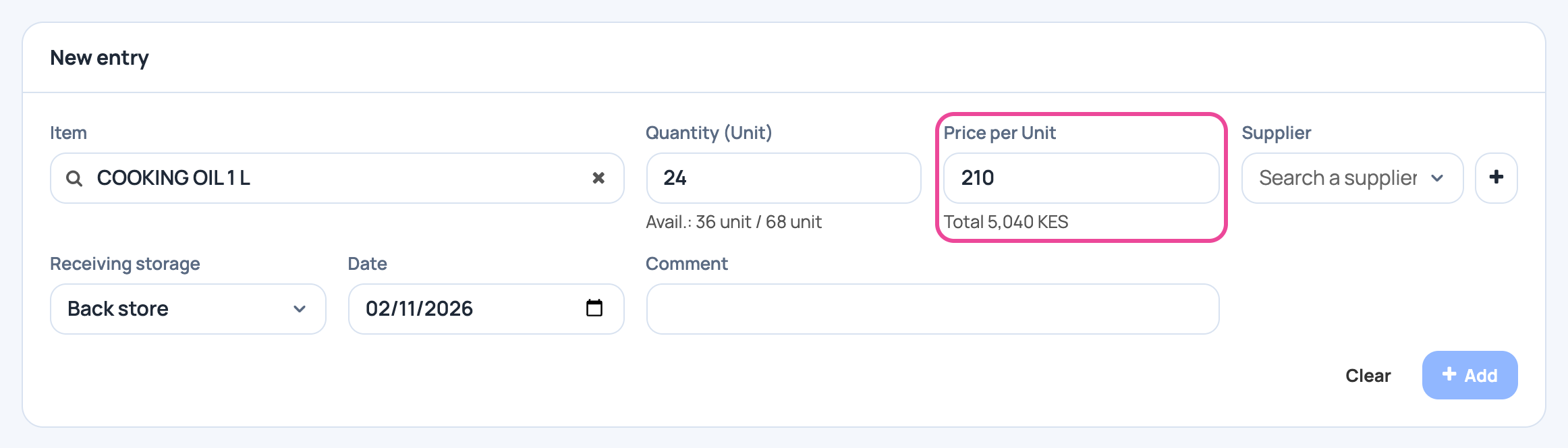
Quantity and price
How many came in and what each one cost. The total shows below.
-
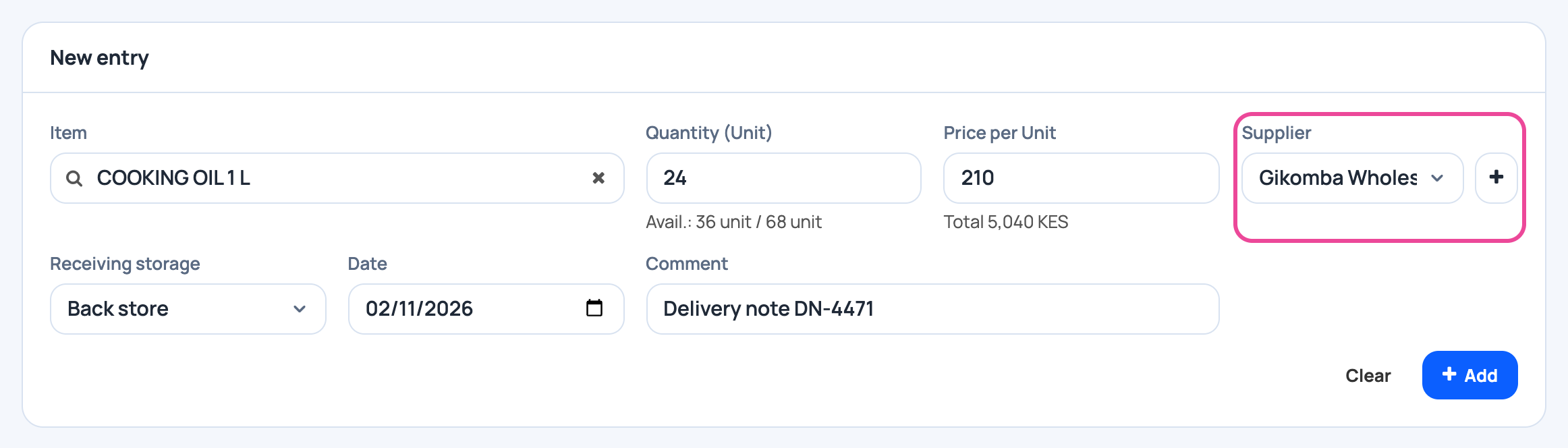
The supplier
Pick who delivered it. Add the delivery note number as a comment.
-
Add it
Check the receiving storage and the date, then click Add.
-
It is in your list
The delivery shows with its supplier, and the stock goes up.

Next step
More guides
- 1Create an itemAdd a product, its price and its opening stock.
- 4Transfer stockMove stock between your storages.
- 5Count your stockCount a shelf and fix the stock to match.
- 6Import items from ExcelAny Excel list works. Check the columns, review, and your items are ready.
- 7Check your stockThe overview and the below-minimum list, in a minute.
- The Stock appStock
- All guidesLearn