 Aser One
-
Start from your list
Any Excel or CSV list works, with your own column names. No template needed.
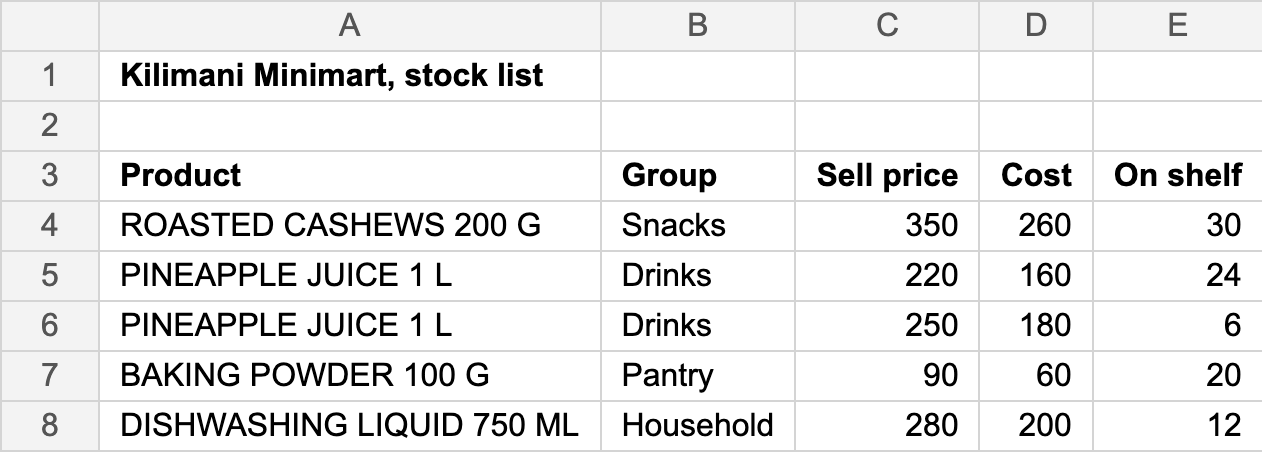
-
Open the import
In Stock › Items, click Import.
-
Drop your file
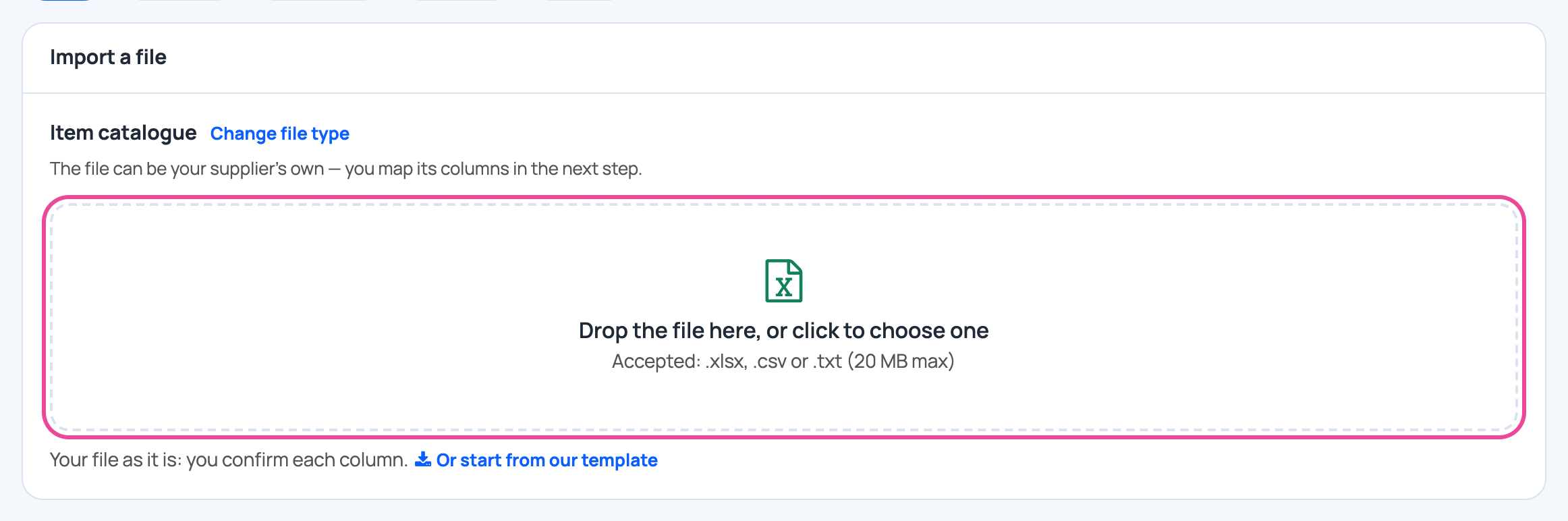
Drop it here, or click to choose it.
-
Check the header
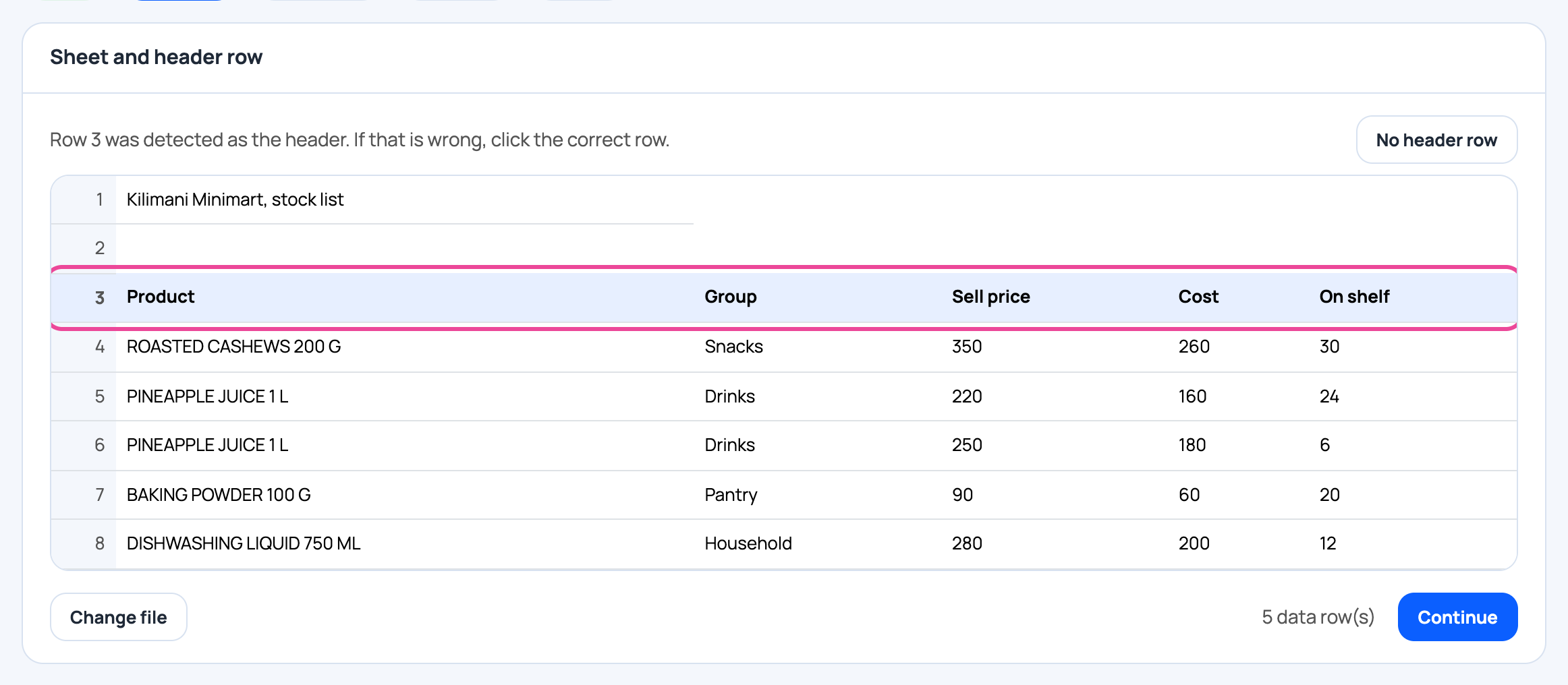
The line with your column names is found for you. If it is wrong, click the right line, then Continue.
-
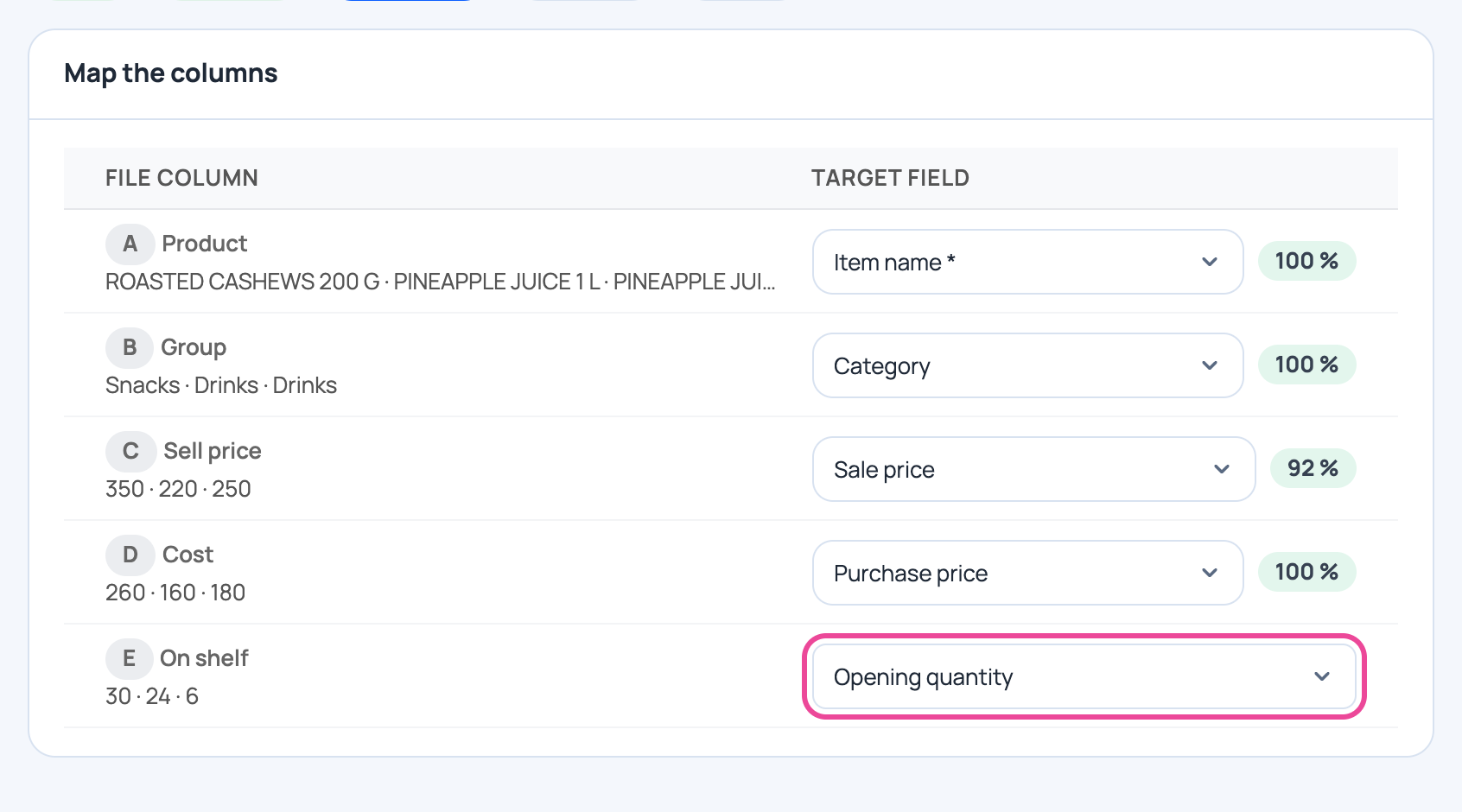
Match the columns
Most columns match by themselves. For one left on Ignore, choose what it is.
-
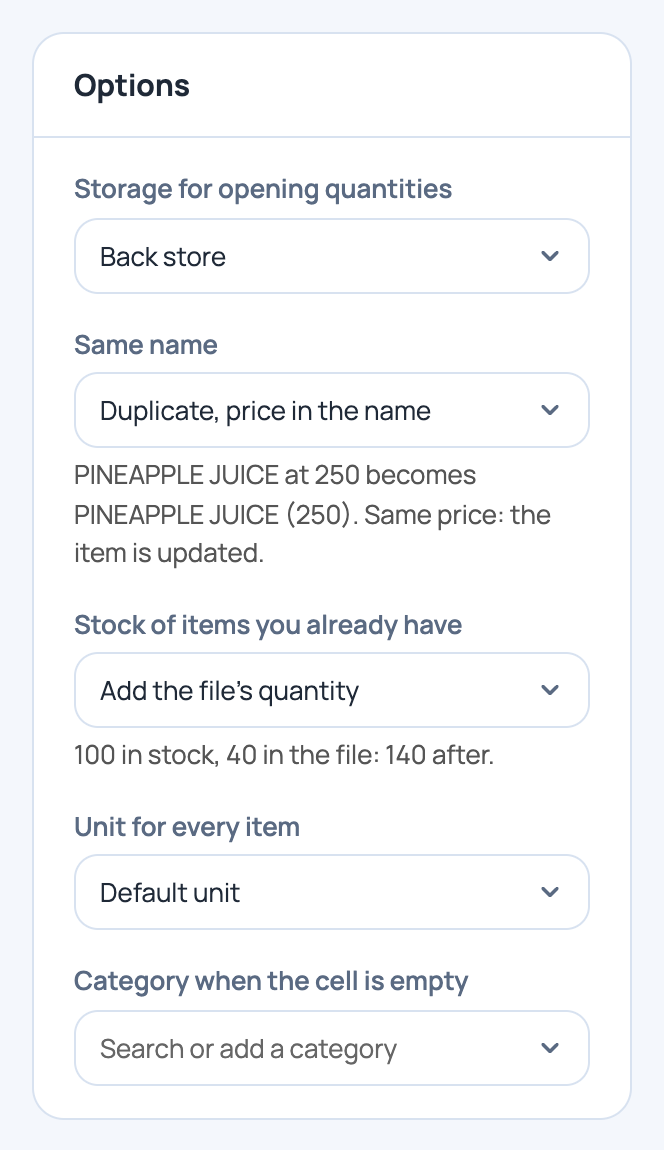
Answer the options
Choose the storage, then what to do with repeated names and with stock you already have. Click Check.
-
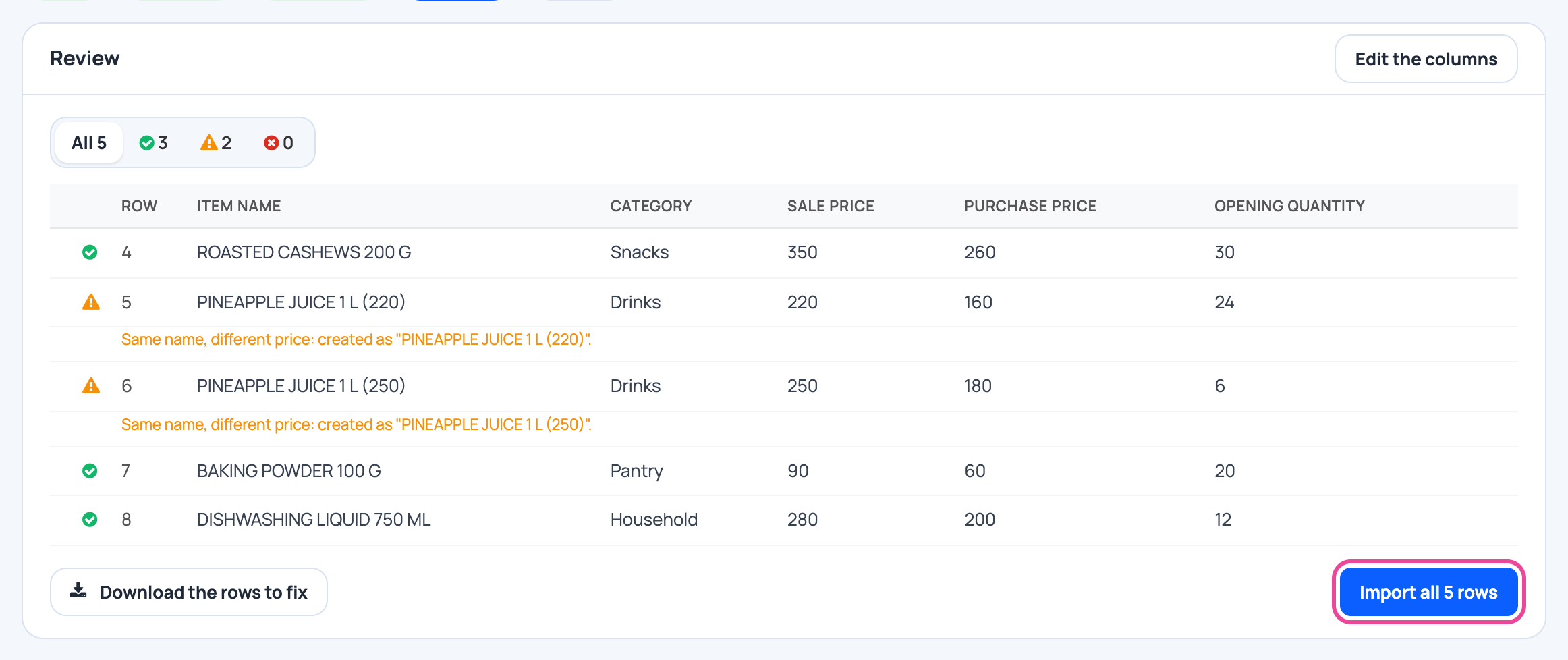
Review
Each line says what it will become. Nothing is saved yet. Click Import all.
-
Done
The count of items created. Click See my new items.

-
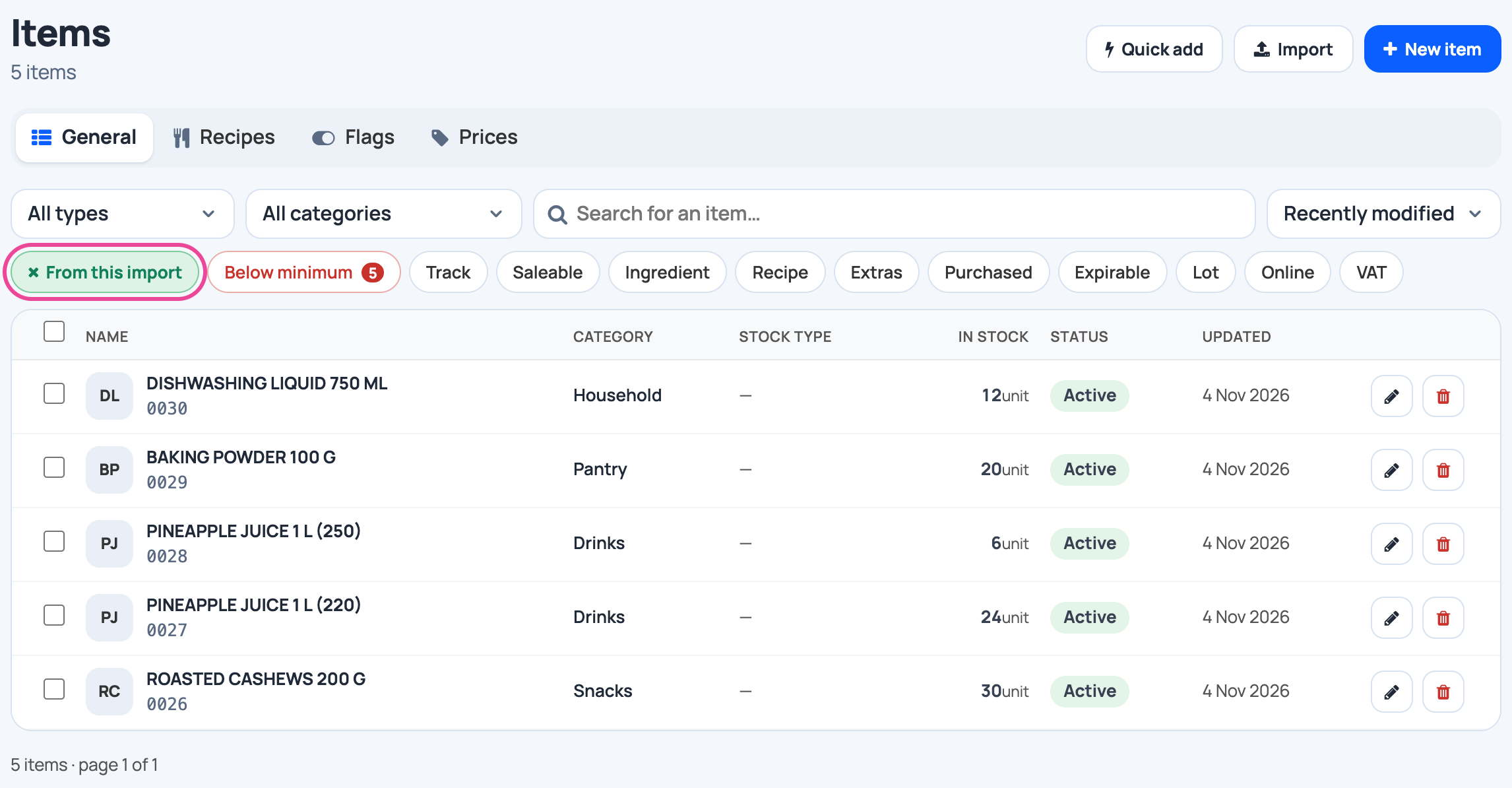
Your new items
The list shows only this import. Clear the filter to see everything.
-
Same file twice?
The import stops and asks first, so stock is not added twice. Click Import it again only if you mean it.

Next step
More guides
- 1Create an itemAdd a product, its price and its opening stock.
- 2Stock in from a supplierRecord a delivery: item, quantity, price and supplier.
- 3Give out stockRecord stock used, given to staff, or damaged.
- 4Transfer stockMove stock between your storages.
- 5Count your stockCount a shelf and fix the stock to match.
- The Stock appStock
- All guidesLearn