 Aser One
Take a roll call
Scan the class in a few minutes and see at once who is missing.
On the phone, 9 steps
Guide 4 of 4 in Schools & shared tablets
-
Start it
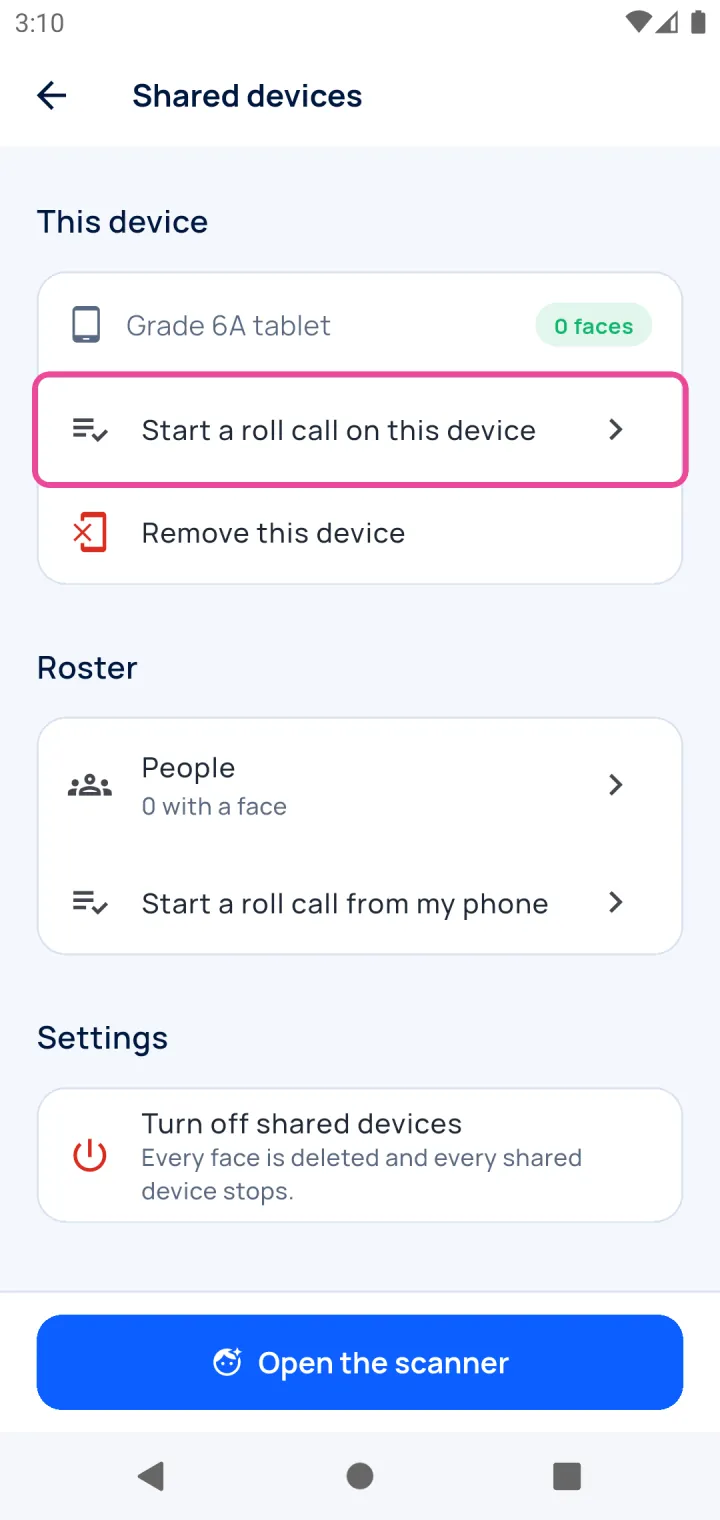
On the class tablet, tap Start a roll call on this device.
-
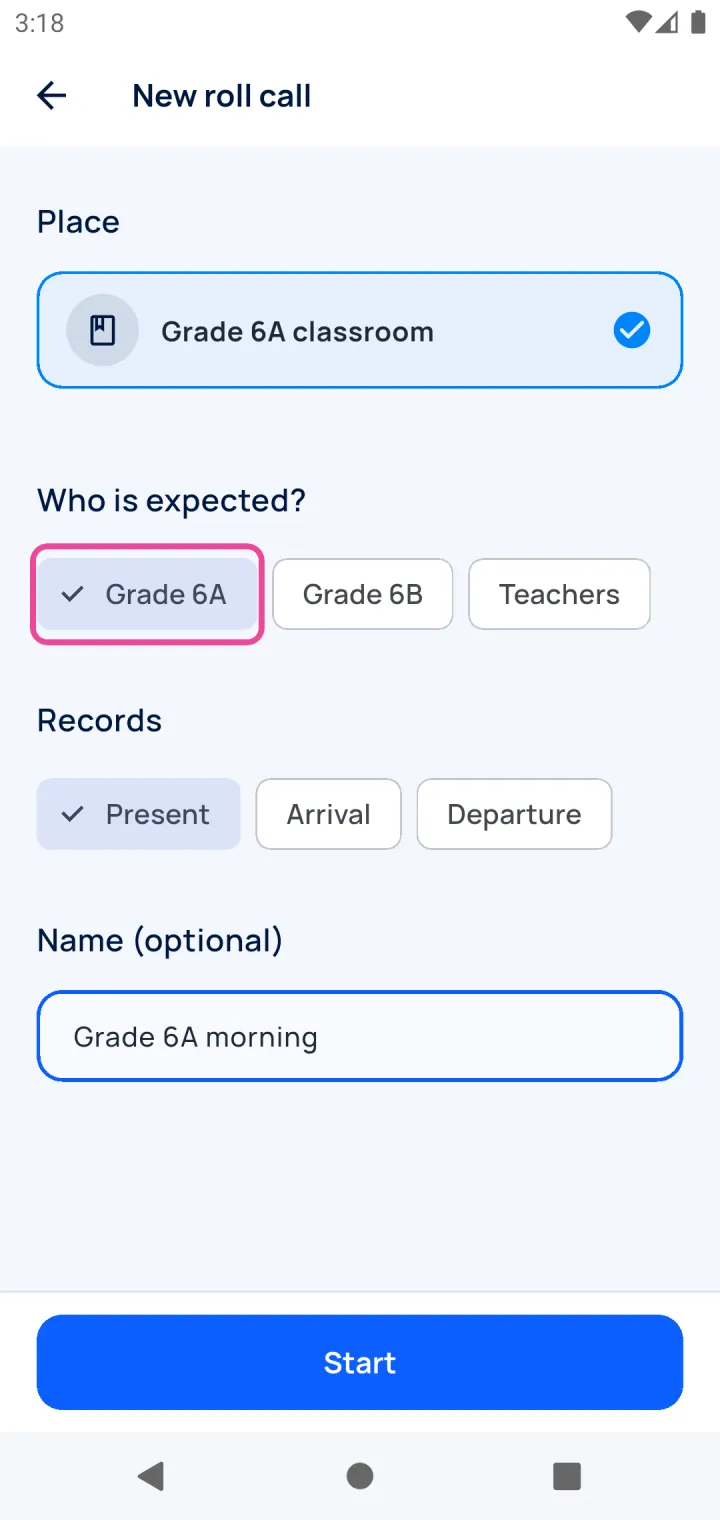
Who is expected
The classroom’s class is already picked. Tap Start.
-
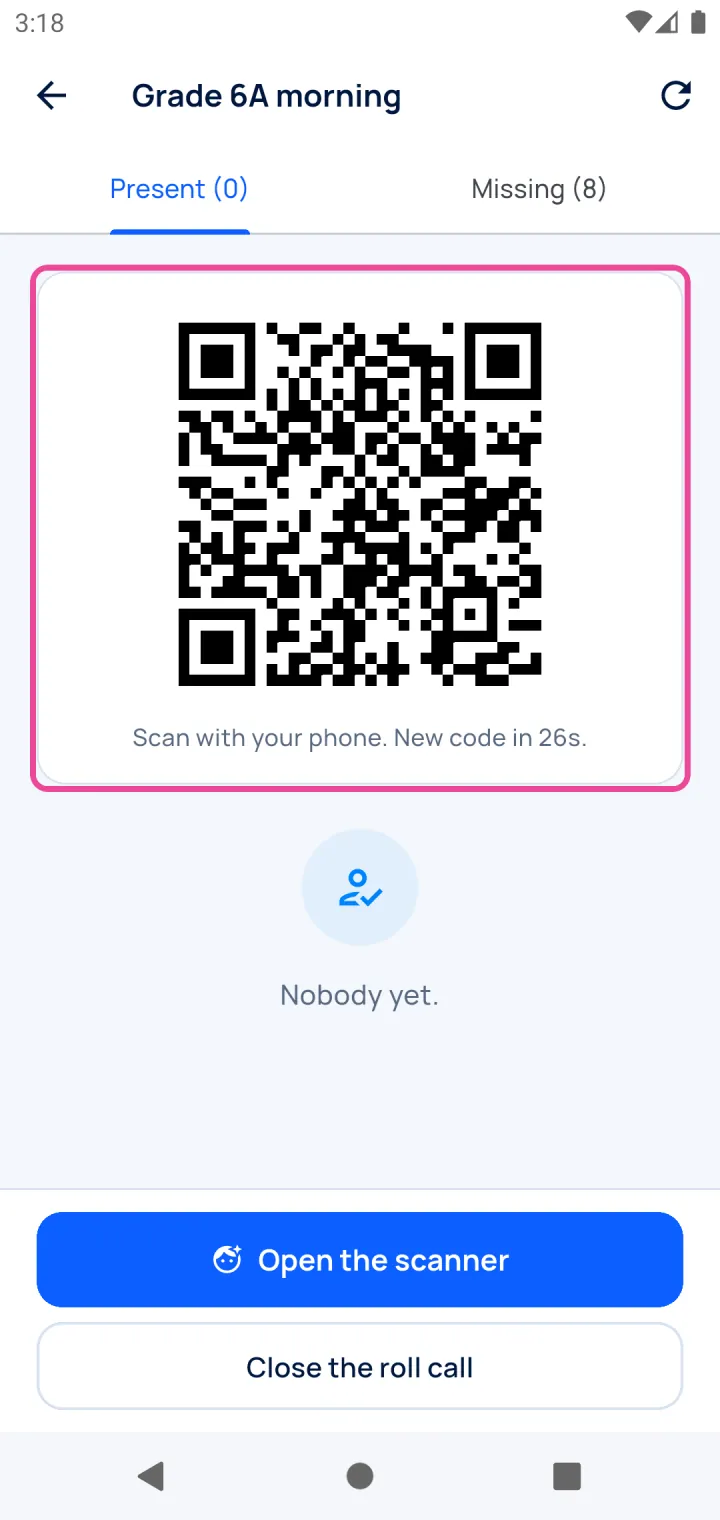
Scan
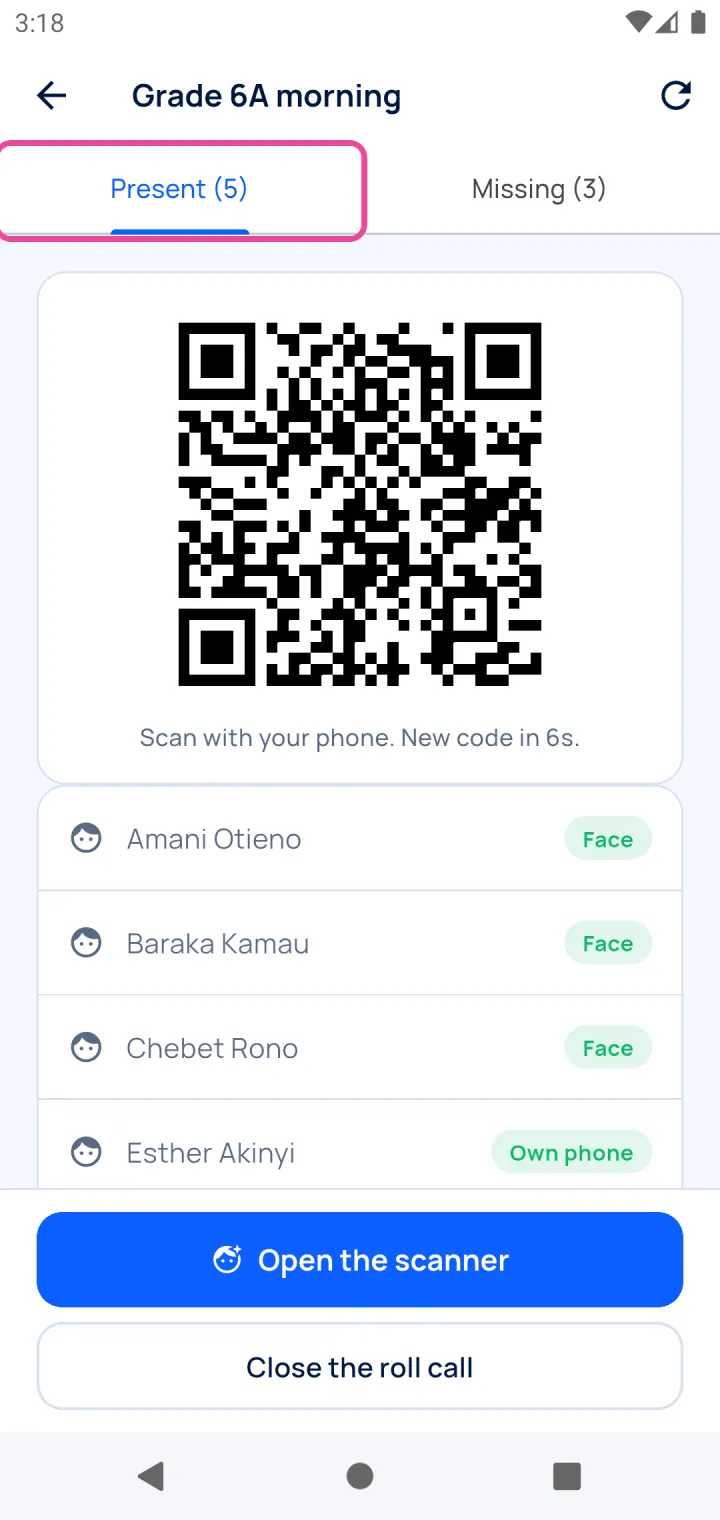
Open the scanner for faces. Staff with their own phone can scan the QR code.
-
Who is here
Present fills up as faces are recognised.
-
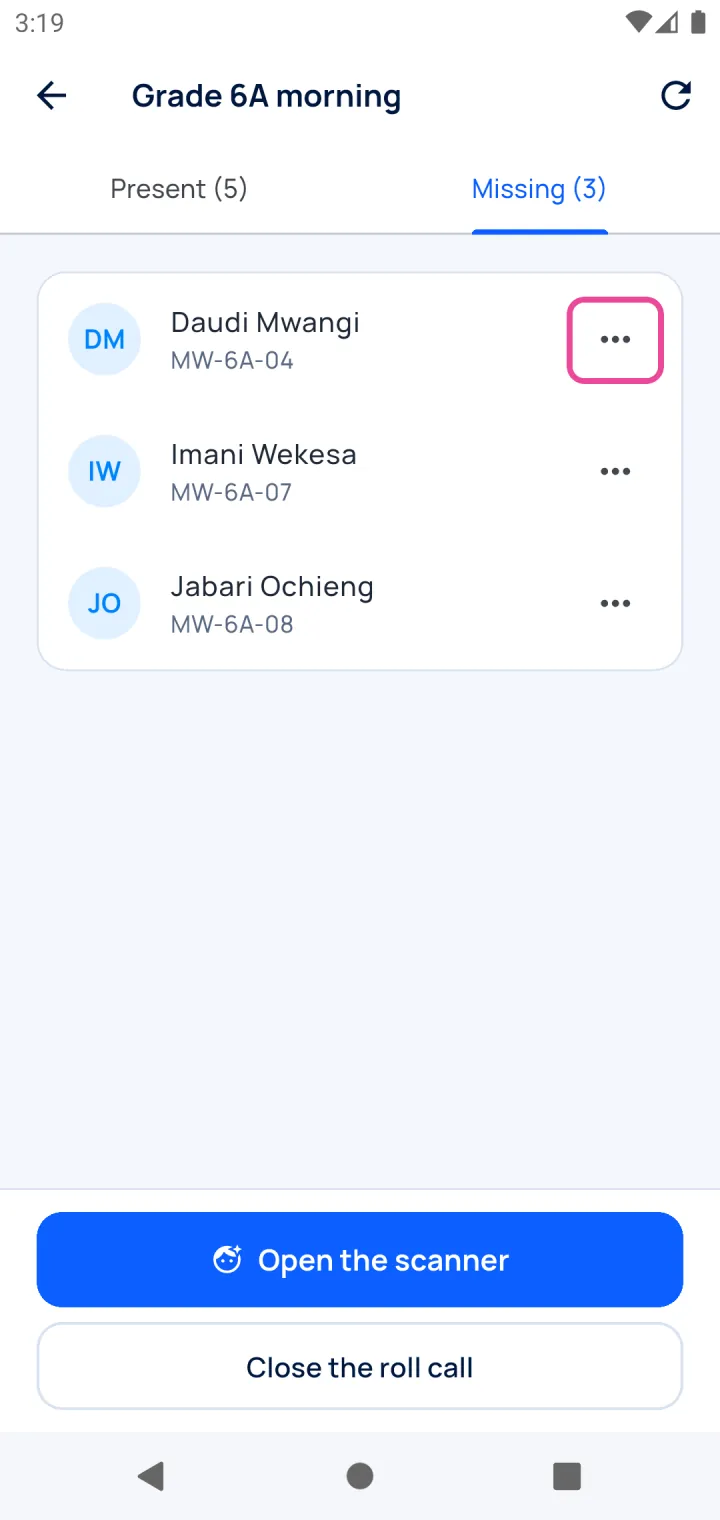
Who is missing
Missing lists everyone expected who has not been seen.
-
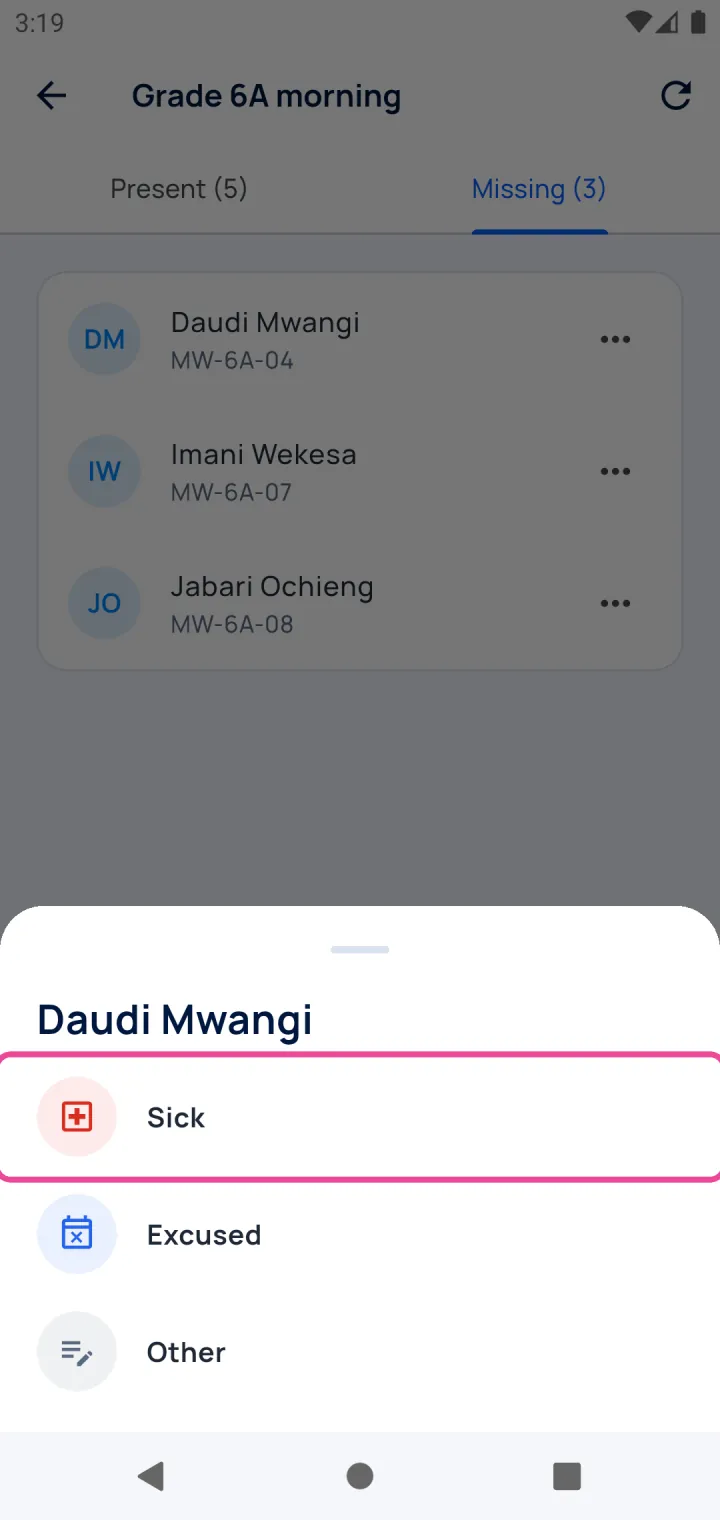
Give a reason
Tap ••• on a pupil to mark them sick, excused or other.
-
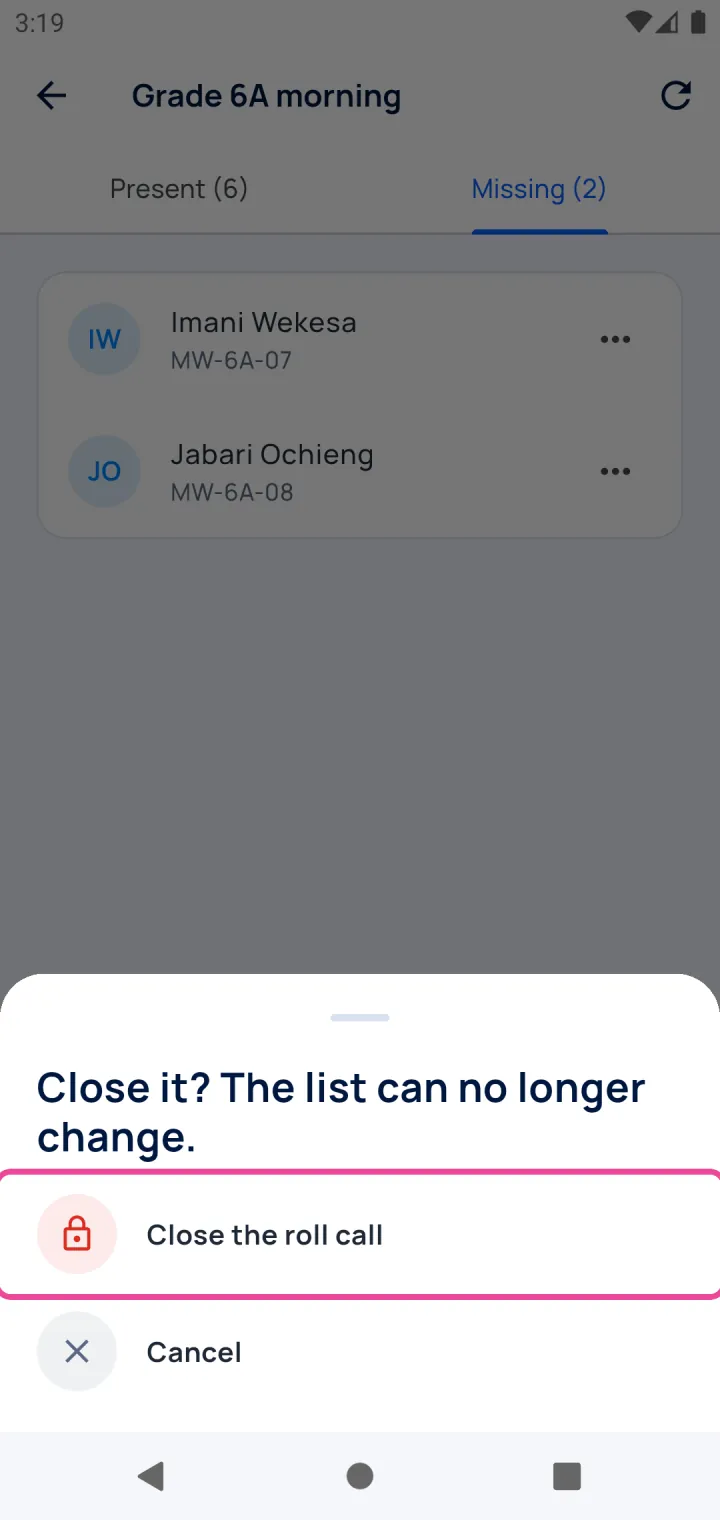
Close it
Tap Close the roll call. The list can no longer change.
-
On the computer
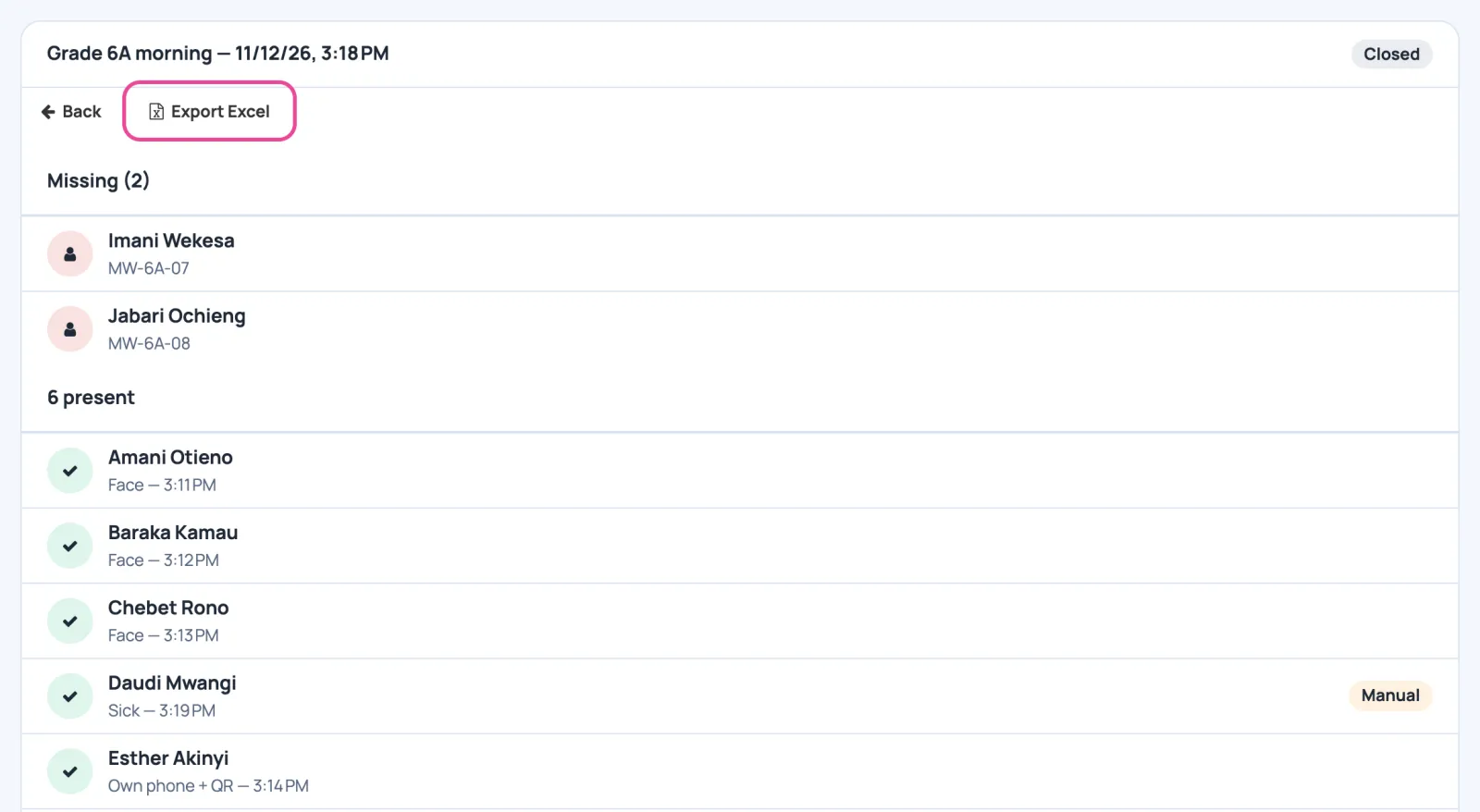
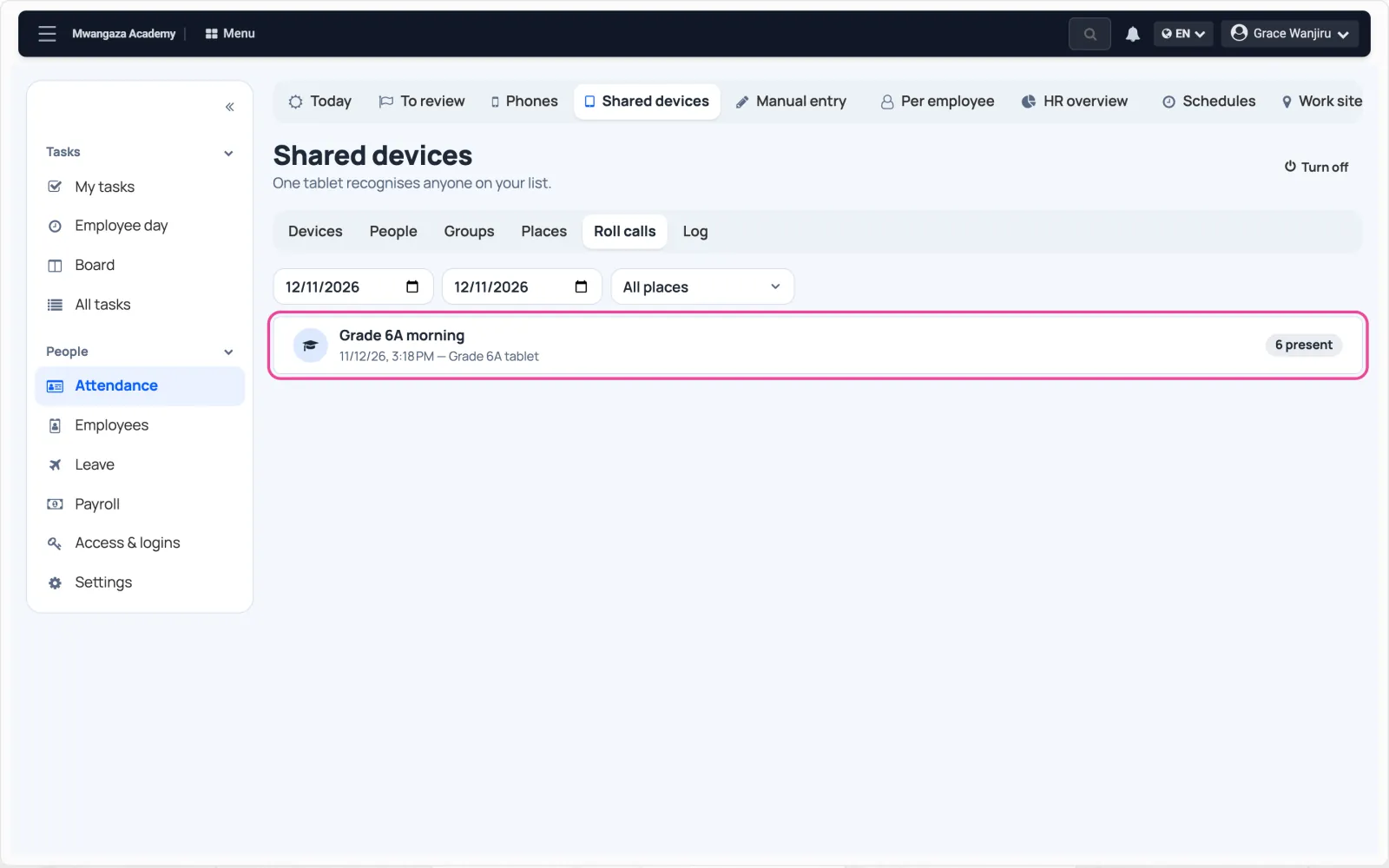
In Shared devices › Roll calls, every roll call is listed.
-
Export it
Open one to see who came and how, then click Export Excel.